

Team and access
Open Team in the user menu to manage the selected team's members, permissions, settings and change history. Owners and administrators can manage members.
Add a colleague
- Select Add member.
- Enter an email, role and password. First and last names are optional.
- Check the password requirements and select Add.
- Share the password privately with your colleague; they can change it in Profile.
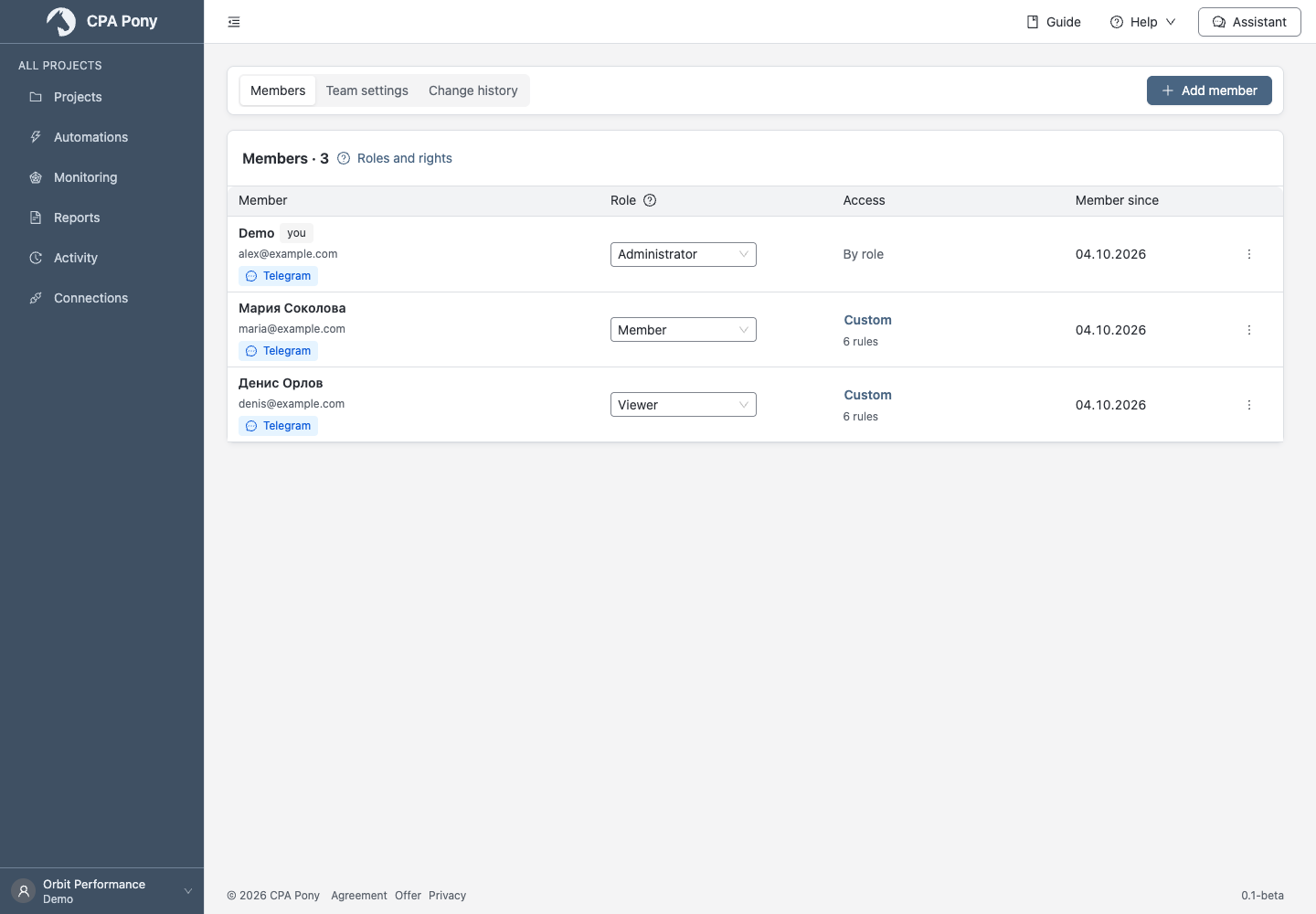
This creates a new account rather than inviting an existing user. If the email is taken or the password is unsuitable, correct the marked field.
Set roles and access
Open Roles and rights to compare roles. There is one owner: you cannot appoint a second owner, demote or remove the owner here. A role change in a row applies immediately; lowering your own role requires confirmation.
For a member or viewer, select By role or Custom, choose access levels and save:
| Level | What it allows |
|---|---|
| By role | Use the role's normal permissions. |
| No access | Hide the object. |
| View | Read without changes. |
| Edit | Change settings. |
| Run | Perform actions where this level is available. |
A specific object's rule takes priority over a section rule, then the role applies. Project statistics access is separate. Connections have no run level. Owners and administrators have full access through their role.
Remove from team ends access and removes the member's custom rules. It does not delete their projects. An administrator who removes themselves also loses team access.
Change team settings
On the settings tab, change the name or time zone and select Save. Projects without their own calendar use this time zone. After changing it, check data refreshes: data from the old calendar does not become data for the new one. Refresh earlier dates manually within your plan's history. If projects prevent the change, open the settings listed in the warning.
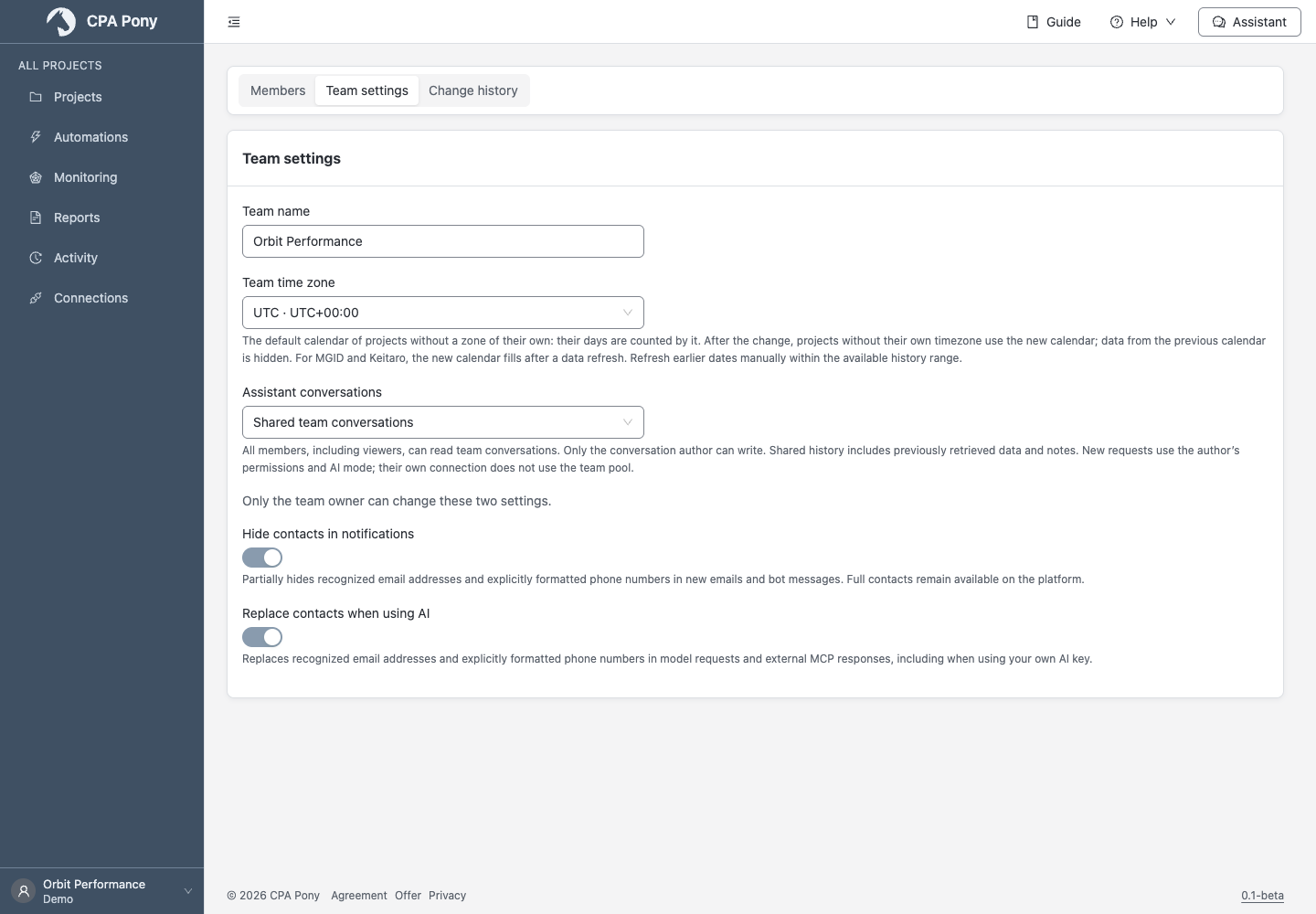
Choose visibility under Assistant conversations:
- Own conversations: members read and continue their own; owners and administrators may also read and delete others' conversations, but cannot write in them.
- Shared team conversations: all members, including viewers, may read. Only the author can continue a conversation.
Opening history to the team
Members will see all saved messages, including previously read data and notes. New requests use the message author's permissions and AI settings. Built-in AI uses the shared team budget.
Contact privacy
Both switches are on by default. Everyone on the team can see their current values. To change either setting, the current team owner toggles it and selects Save.
- Hide contacts in notifications partially masks recognized email addresses and explicitly formatted phone numbers in new emails and bot messages. Delivery addresses and contacts on the platform stay intact. Messages already queued retain their text.
- Replace contacts when using AI substitutes aliases for these contacts in model requests and external MCP responses. Turning it off allows the original values to be sent. Secret protection applies in both modes. Recognition is not guaranteed for names, addresses or unusually formatted contacts.
Read change history
Owners and administrators can open Change history. Choose an object, event and period; additional filters select a member or action source. Records show who changed what. Available objects can be opened; deleted or hidden objects may have no link.
Manager actions are labelled CPA Pony support. History includes blocks, externally recorded payments and refunds; the block reason is not published in the log. Read run and operation results separately in Activity.
Member limits and notifications
The member limit includes the owner. At the limit, you cannot add another member: free up a place or change your plan. When usage exceeds the limit, members keep access, but data refreshes, automations and observations pause until the excess is resolved.
The member list shows connected channels. Select message recipients separately for each automation, observation or report.
If an action is unavailable or the list has changed, refresh and check the role. For request failures, follow the general instructions.