

Automation steps
Use this reference to choose and configure the 23 step types. Read Automations for creation and enabling, and Runs for results.
The screenshots show example step settings. Select a screenshot to view the fields at full size.
Read the graph
Select a step on the graph to open its settings. ? opens this step's reference section; ⓘ beside an option explains its purpose.
Arrows pass selected objects to the next step. Conditions usually have Match, No match and No data branches. Missing values are not zero or a negative answer. An unconnected branch ends; a filter with one output simply narrows the selection.
Choose sources, metrics and actions from the available options. Examples show logic: use your own thresholds and check currencies and units. After configuration, test the graph and inspect the objects on each branch.
Protection and repeats
Under Safeguards, set object exclusions and enable the data reliability check if needed. It checks freshness and source consistency. On failure, read the step result; automatic work may be deferred until a data refresh. The switch does not itself refresh statistics. Data quality check has separate checks and a Problems found branch.
Exclusions ignore letter case and surrounding spaces. Do not connect No data to an action that requires confirmed values.
An action has two separate settings: what to do with an already-applied operation, and how long to wait between repeats. Apply again does not bypass the pause. See Activity for clearing a mark.
Trigger period and dimensions
The period uses the project's calendar days. Offset 0 includes today; offset 1 excludes the incomplete current day. The dimension determines the objects available to later steps.
Record-based services such as CRM can offer several dimensions. Reporting services usually allow one dimension or a supported set. If validation rejects the selection, follow its hint. To replace a saved list with one dimension, clear the list first. The combined-data dimension is configured separately.
If a previous run is still active, choose Skip the new run or Run at the same time. Concurrent runs can affect the same objects and exceed the daily action limit; consider this before enabling them.
Scheduled trigger
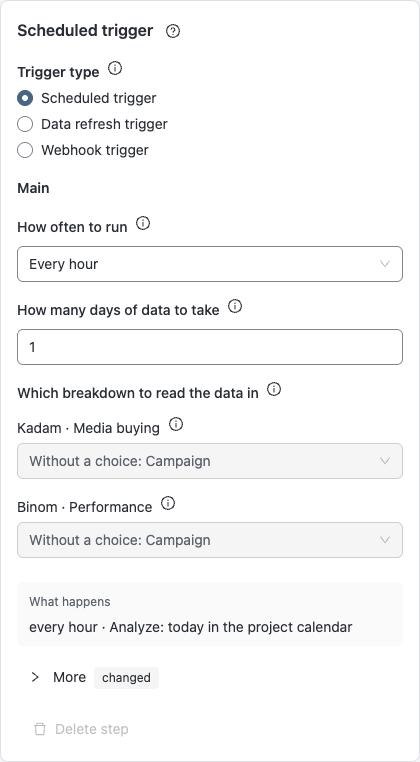
Choose the frequency, period and dimensions. The minimum interval depends on your plan. By default, a new run is skipped while the previous one is active.
Example: check seven days every hour with offset 1 to exclude today.
Data refresh trigger
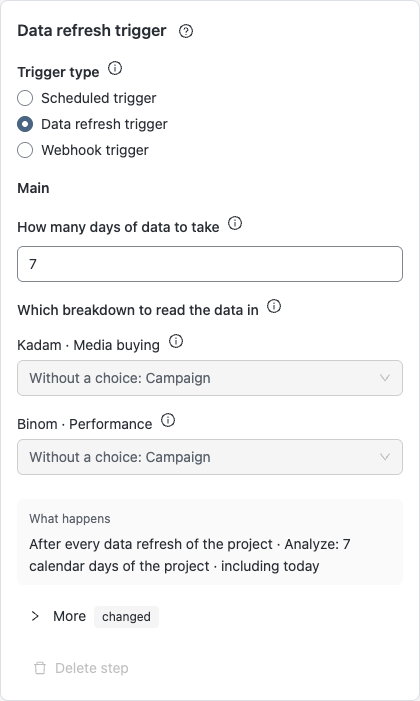
Starts a check after project data is refreshed. Set the period and dimensions as for a schedule. This trigger does not replace data quality checks.
Example: after a refresh, check quality and then a cost condition.
Webhook trigger
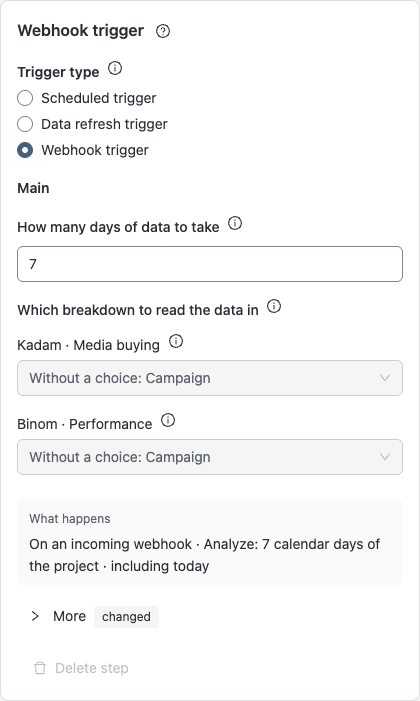
Choose the period and dimensions, publish the automation and get its address from Settings. A new webhook step allows concurrent runs by default. The address contains a secret; rotating it invalidates the old one. An accepted event does not confirm action execution.
See webhook instructions for retrying during maintenance.
Combine sources
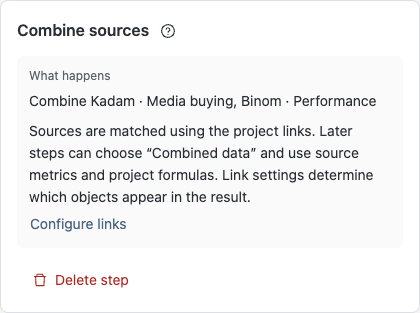
First configure source links, then choose the combined-data dimension. With one source, choose its dimension; with several, choose a side of a link. Leaving it blank uses the default dimension.
Example: match network cost and tracker revenue by site. Use Combine branches to join graph branches.
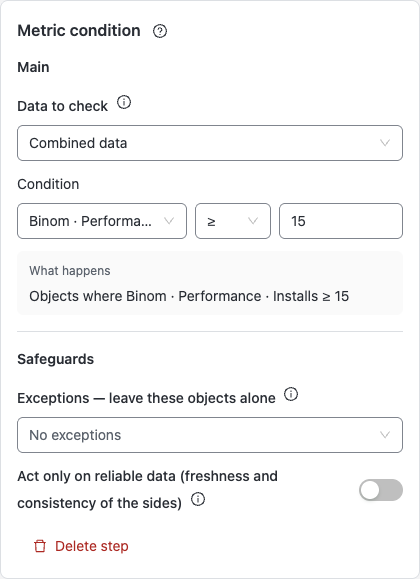
Metric condition
Choose data, a metric, comparison and threshold. Each object goes to Match, No match or No data.
Example: cost > 10 selects objects above 10 in the data currency. To check for zero conversions, add conversions = 0; a missing value is not zero.
Branch by metric
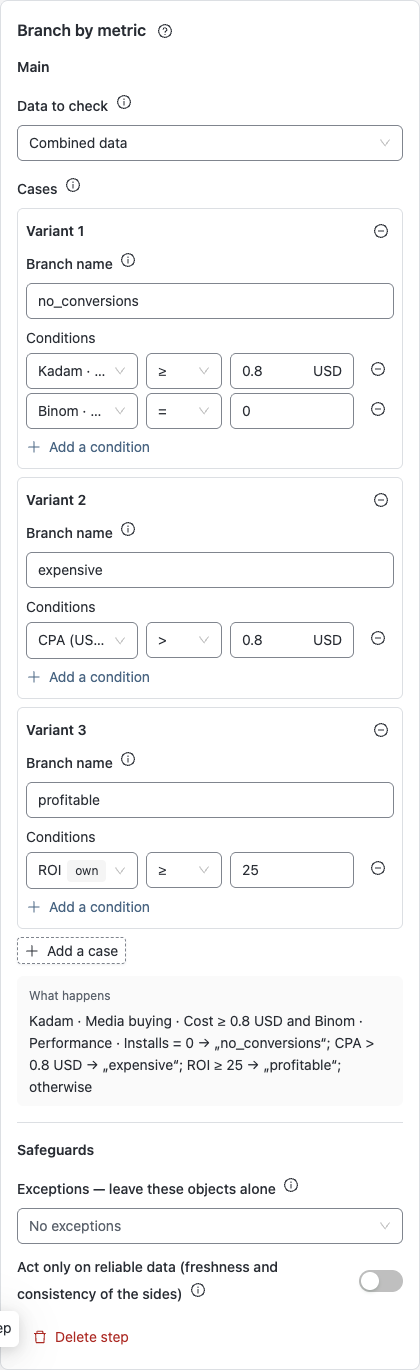
Choose data and add cases with branch names. All conditions within a case must hold. Cases are checked top to bottom: an object enters only the first match; the rest go to Otherwise.
Example: put cost > 50 before cost > 20. In reverse order, cost 60 already enters the first branch.
Total check
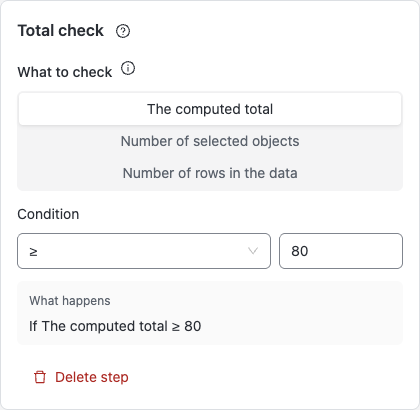
Choose a calculated total, selected-object count or row count for the chosen data, then set a comparison and threshold. A calculated total needs Total calculation earlier in the graph. The entire set goes to Yes or No.
Example: if there are more than 20 candidates, notify someone instead of performing a mass action.
Group comparison
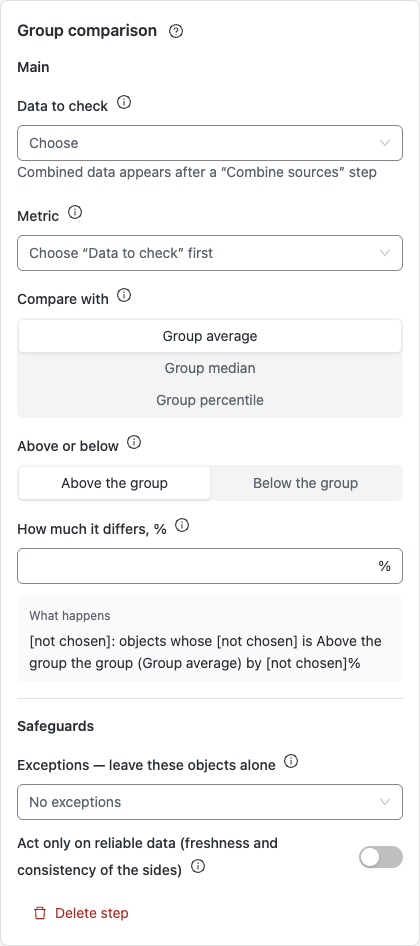
Choose a metric, group mean/median/percentile, direction and percentage difference. For a percentile, specify 0–100. The comparison base includes all objects in the selected data, not just those selected earlier. An impossible comparison goes to No data.
Example: find sites whose CPA exceeds the group median by a chosen percentage.
Data quality check
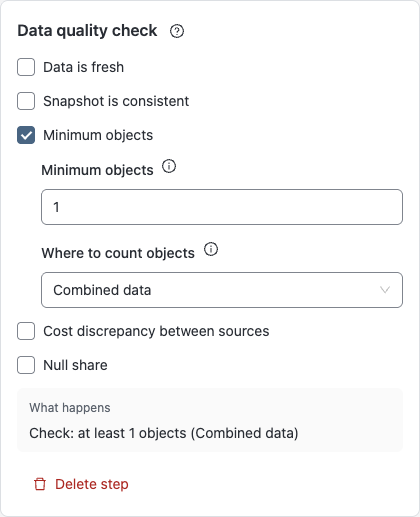
Enable at least one check: freshness, consistent refreshes, minimum objects, cost discrepancy or missing-value share. Choose data for an object count, both cost sources for discrepancy, and data plus a metric for missing values.
Connect Data is fine to the working branch and Problems found to a notification, for example. This step checks data but does not refresh it.
Metric change
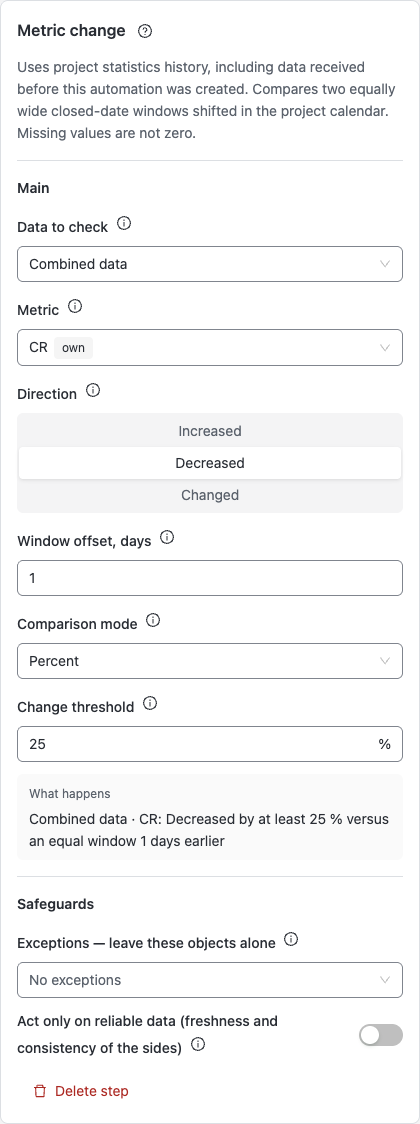
Choose data, a metric, direction, previous-window offset and threshold. Equal periods are compared; incomplete dates are excluded from historical comparisons. Check the unit: percentage, difference, percentage points or ratio. Without a usable base, the result is No data.
Example: CTR rising from 1% to 1.3% is +30% or +0.3 percentage points.
Metric trend
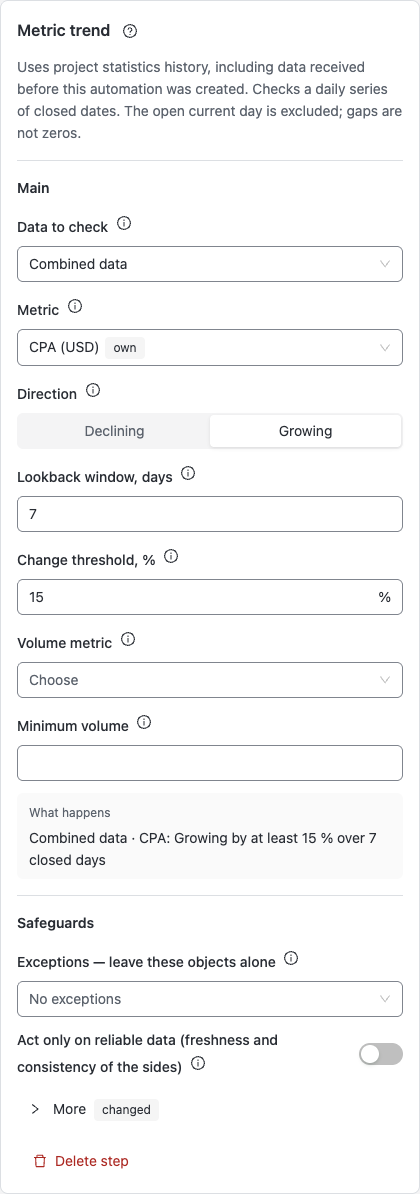
Choose a metric, growth or decline, a window of 3–45 completed days and a percentage threshold. If needed, set minimum points, allowed gaps, stability and data volume. Volume requires both a metric and a minimum.
Gaps are not filled with zeros. Insufficient history gives No data; a calculated trend that does not match gives No match.
Appeared or disappeared
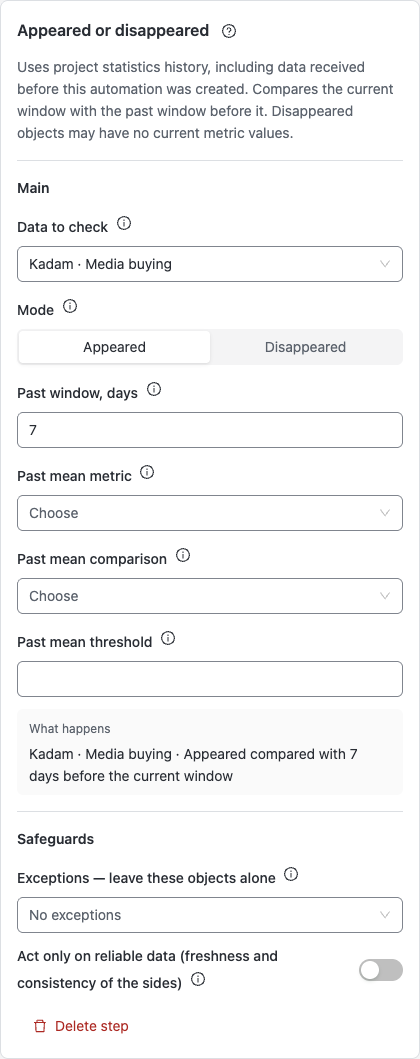
Choose data, Appeared or Disappeared, and a past window of 1–45 days. To filter by past volume, set a metric, comparison and threshold together for the previous daily average.
Example: find disappeared sites whose previous average revenue was > 0. Do not filter them by current metrics beforehand: disappeared objects may have none.
Action impact
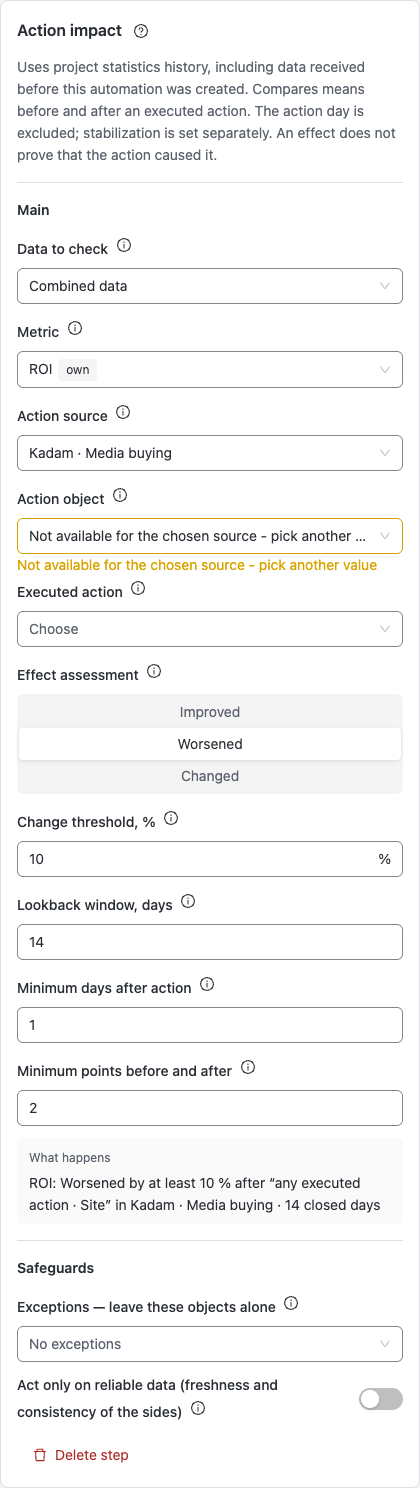
Choose a metric, action source and object, effect assessment and threshold. If needed, set a specific action, window, minimum points before/after and stabilization time. No specific action means the latest completed action. Improved/Worsened requires an improvement direction for the metric.
The action day is excluded. Insufficient history, unfinished stabilization or other actions in the period can prevent assessment. A metric change alone does not prove the action caused it.
Metric filter
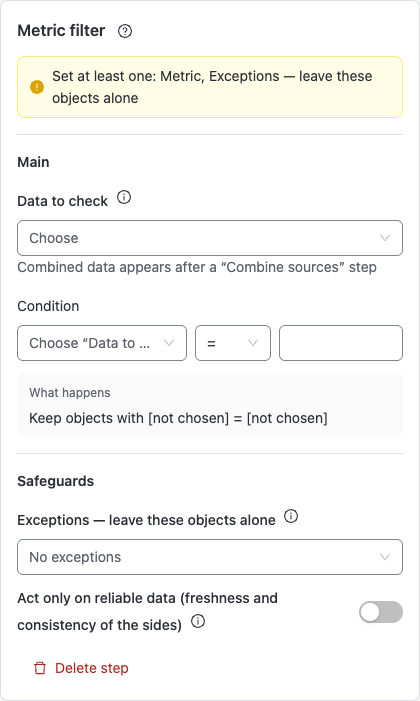
Choose data and set a metric, comparison and value, or use exclusions alone. Only matching objects continue; there is no separate branch for the rest.
Example: keep objects with clicks ≥ 50 before comparison. Use Metric condition if the other objects need a separate branch.
Top or bottom objects
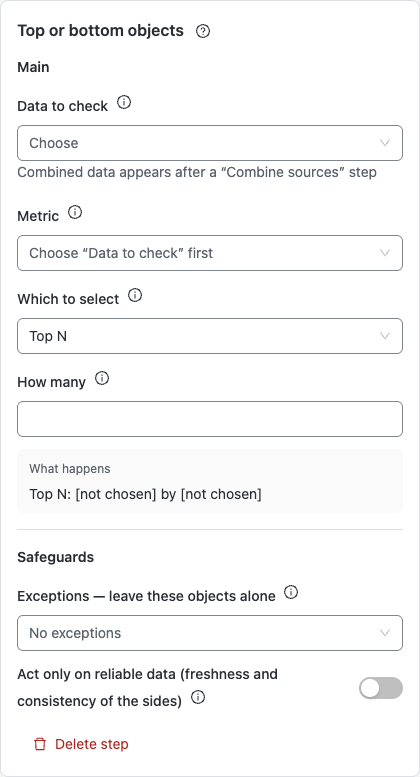
Choose data, a metric and a mode: first/last N, first/last N%, or objects contributing N% of the metric total. A count requires N ≥ 1. Objects without a metric value are excluded.
Example: the five objects with the lowest ROI differ from the objects contributing 80% of cost.
Total calculation
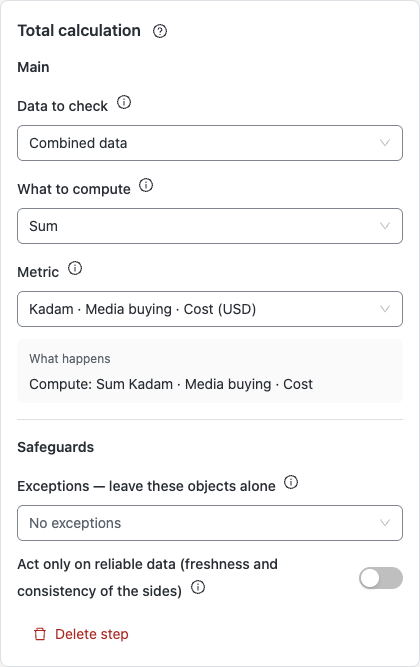
Choose data and a total: count, share, sum, average, median, minimum, maximum or percentile. Select a metric for numeric totals, a weight for weighted average and a level for percentile. Follow it with Total check.
Example: selected-object cost total > 100 → notification. Averaging CPA differs from calculating CPA from total cost and conversions.
ID pattern match
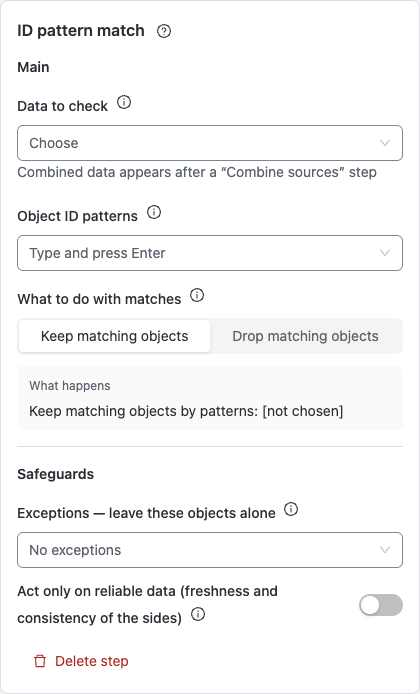
Choose data, enter exact IDs or patterns, then choose whether to keep or remove matches. If there are several key types, choose the ID to compare. An asterisk replaces a whole part, such as *.site.com; arbitrary regular expressions are not supported.
Example: exclude an agreed list of sites from further processing.
Action limit
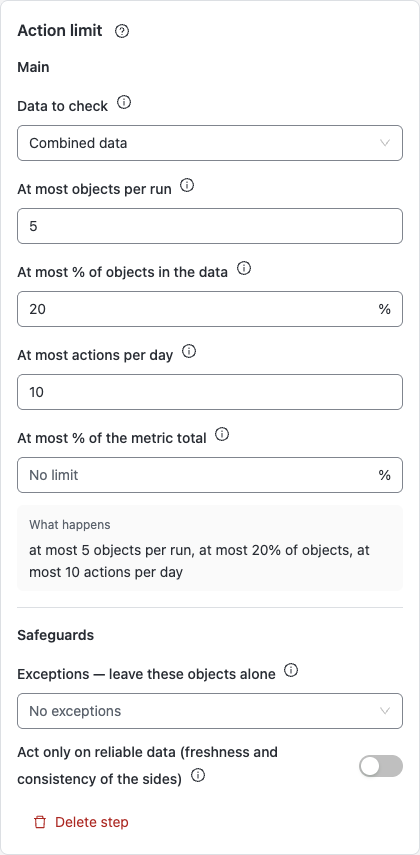
Place this before an action. Set at least one limit: objects per run, percentage of all objects, actions over the last 24 hours, or share of a metric total. Choose a metric for the last option. Multiple limits apply together.
Example: at most five objects per run and twenty actions over 24 hours. Concurrent runs can exceed the daily limit; check trigger settings.
Data refresh before check
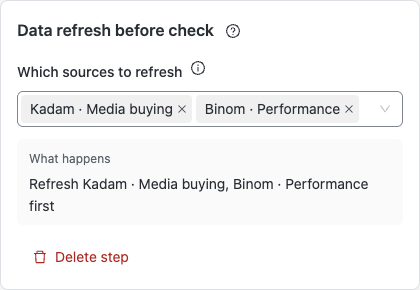
Choose sources; an empty selection means all project sources. This rereads saved statistics without collecting from external services. It preserves selected objects; after a pause, the period follows the current calendar. For combined data, add Combine sources again afterwards.
Example: action → pause → reread data → combine → check the result.
Service action
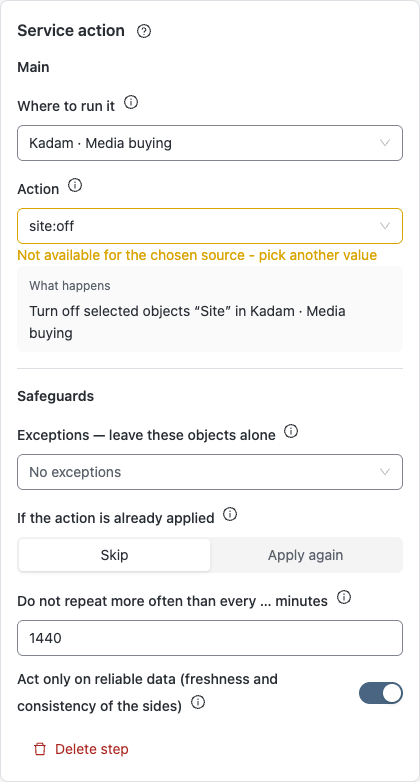
Choose a source, action and its parameters. Available operations depend on the service and object type. Check bid/price units and the required context: for example a campaign, or a cost-per-click ad for an eTarg site price.
Under Safeguards, choose whether to skip an already-applied action with the same parameters, and set the pause between repeats. The pause counts the same action through the same connection on this object, including other automations. Apply again does not bypass it. Outputs are Done, Error and Skipped.
If CRM offers Configure trigger dimensions, review the proposed set. It replaces dimensions for the specified source; you can undo the change. Validate again after changing the combined-data dimension. Use reapplication and an appropriate pause for recurring tasks or comments.
Service specifics:
- Kadam: site bids can change when there was traffic in the last 60 days; clearing a bid removes both price and multiplier.
- Binom: labels apply to token values in a project with one campaign;
noneclears a label. Setting and clearing require clicks in the campaign. - Keitaro: Clear label removes the previous label.
Test before enabling: it shows the proposed operation without performing it.
Notification
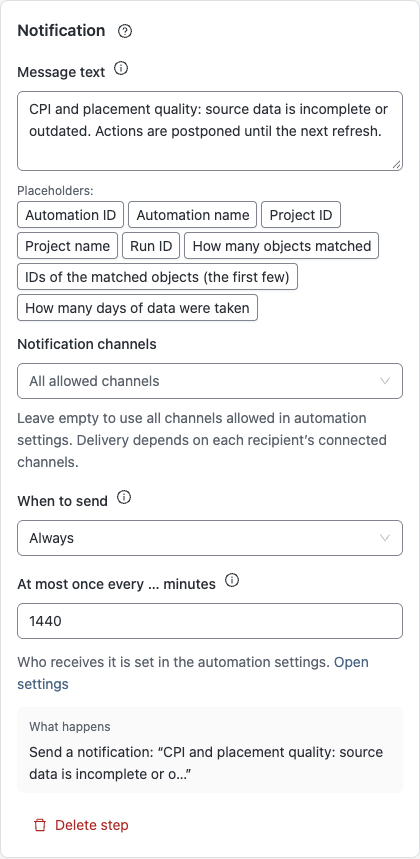
Set text and/or an object list. Choose placeholders from the editor. Select when to send: always, only when objects exist, or when objects or text exist. The frequency limit applies to the whole step, not each object.
Choose one or more delivery channels in the step. An empty selection means All allowed channels: those permitted by the automation settings. For example, if the automation only allows Telegram, leaving the step selection empty does not add email or other messengers.
Set recipients in the automation settings. Each recipient must connect the required channel in their own profile; selecting a channel in a step does not connect it. Messages cannot reach an unconnected channel, and another channel is not used in place of an explicitly selected one.
If a saved step selects channels that are no longer allowed, correct the marked channels. The error does not clear your selection: the draft is saved, but you cannot publish it until the error is resolved. Check recipients and their channels before enabling; a queued notification is not confirmed delivery.
Pause
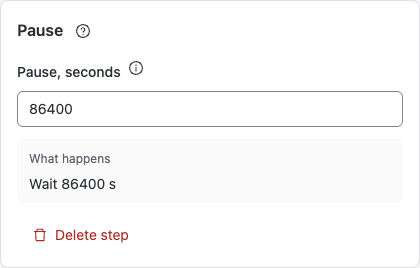
Set a wait of 1–86,400 seconds. The same objects continue afterwards; statistics are not refreshed by waiting. The run remains active: check the next-run policy if the pause is longer than the interval.
Example: wait 60 seconds, then reread saved data with a separate step.
Combine branches
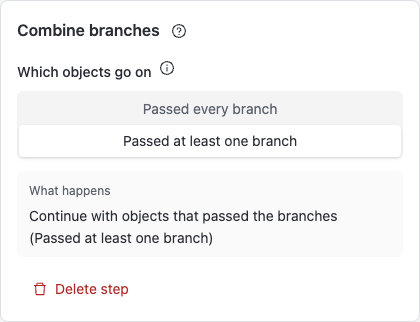
Connect the incoming branches and choose objects that passed at least one branch or all branches. If a branch never reaches this step, it may be skipped; verify the result in a test.
Example: intersect two independent conditions to keep objects that passed both. Use a union for a combined selection from different branches.