

Assistant
Select Assistant in the header. Choose a conversation from history or start a new one. Opening the panel and reading messages do not send an AI request.
The owner controls contact replacement in team settings. It covers history and tool results with either the shared pool or your own AI key. In chat, you can see the original contact only while you have access to its source.
Ask a question
- Choose a conversation or select New conversation.
- Select a project beside the message field, or Entire account.
- Enter your question and period, for example: “Show this project's events for the last seven days.” A starter example only fills in editable text.
- Select Send message or press Enter. Shift+Enter adds a line.
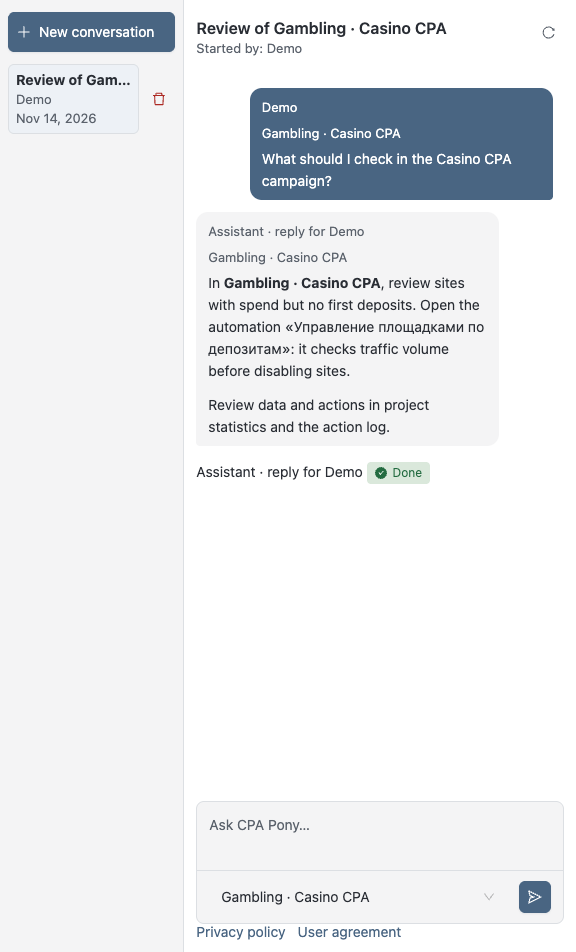
Messages use your AI settings: built-in AI consumes team tokens; your own connection uses its AI-service budget. Creating an empty conversation does not consume tokens. Read the processing notice and available documents before sending.
During a pause the assistant button is hidden. An open conversation still shows its history. If sending is declined, your draft stays in the composer. Any pending confirmation for an interrupted turn expires. When service resumes, send your message manually.
Choose context
Opening the assistant on a project page selects that project by default. Choosing a project in the assistant does not switch the main page. Entire account includes only data you have permission to access.
The project limits data reads and actions for each message. Help and page navigation are not restricted by that choice. Messages show their context; unavailable project names are hidden.
Wait for an answer or cancel waiting
Watch the state and Response steps while the request runs. Wait for it to finish before sending another message. Closing the panel does not cancel the request; reopen it or reload to continue watching.
A request may wait for another of your requests, even from a different team, for up to ten minutes. Waiting to begin execution, such as during maintenance, can last longer; the panel continues checking its state.
The author can select Cancel request before execution begins and while there are no steps. The button is unavailable after execution starts. After cancellation, you can send a new message.
| Situation | What to do |
|---|---|
| Sending outcome is unknown | Use Retry sending for the same request. Its text and project are preserved. |
| Execution state could not be checked | Retry reading the state instead of sending a new message. |
| The answer was cut short | Clarify or narrow the question. |
| Context limit reached | Start a new conversation; the old one remains readable. |
| AI unavailable | Check AI settings and budget. History remains readable within your permissions. |
Confirm an action
A proposed automation change appears as an action card. Check the object, parameters, consequences and expiry, then confirm or reject it. Only the request author can decide, even in a shared conversation.
- Creating an automation or replacing steps changes a draft without publishing or enabling it.
- Notification changes apply immediately; an enabled automation must be turned off first.
- A test performs no service operations and is saved in run history.
Read the result after confirming: execution can still fail. Expired proposals are not executed.
When navigating away from unsaved changes, answer the leave-page confirmation. Repeating confirmation of an already completed navigation does not open the page again.
Memory and history visibility
Model memory stores your notes between conversations. Writing a note does not require an action confirmation card. In shared conversations, any note text read into the conversation becomes visible to other readers.
Visibility is set in team settings. All members, including viewers, can read a shared conversation; only its author can continue it. New requests use the author's permissions and AI settings. Help questions are also paid AI requests.
You can delete your own conversations; only owners and administrators can delete others'. Deletion removes all messages for every participant without recovery.
For request failures, follow the general instructions.