

Automation runs
A run is one execution of an automation. A successful run does not necessarily perform actions: no objects may have passed its conditions. Check both the overall result and individual actions.
Find a run
- Open an automation and its Runs tab.
- Choose All, Working or Tests, and a status if needed.
- Open the record at the required time. Use the list's page controls for older records.
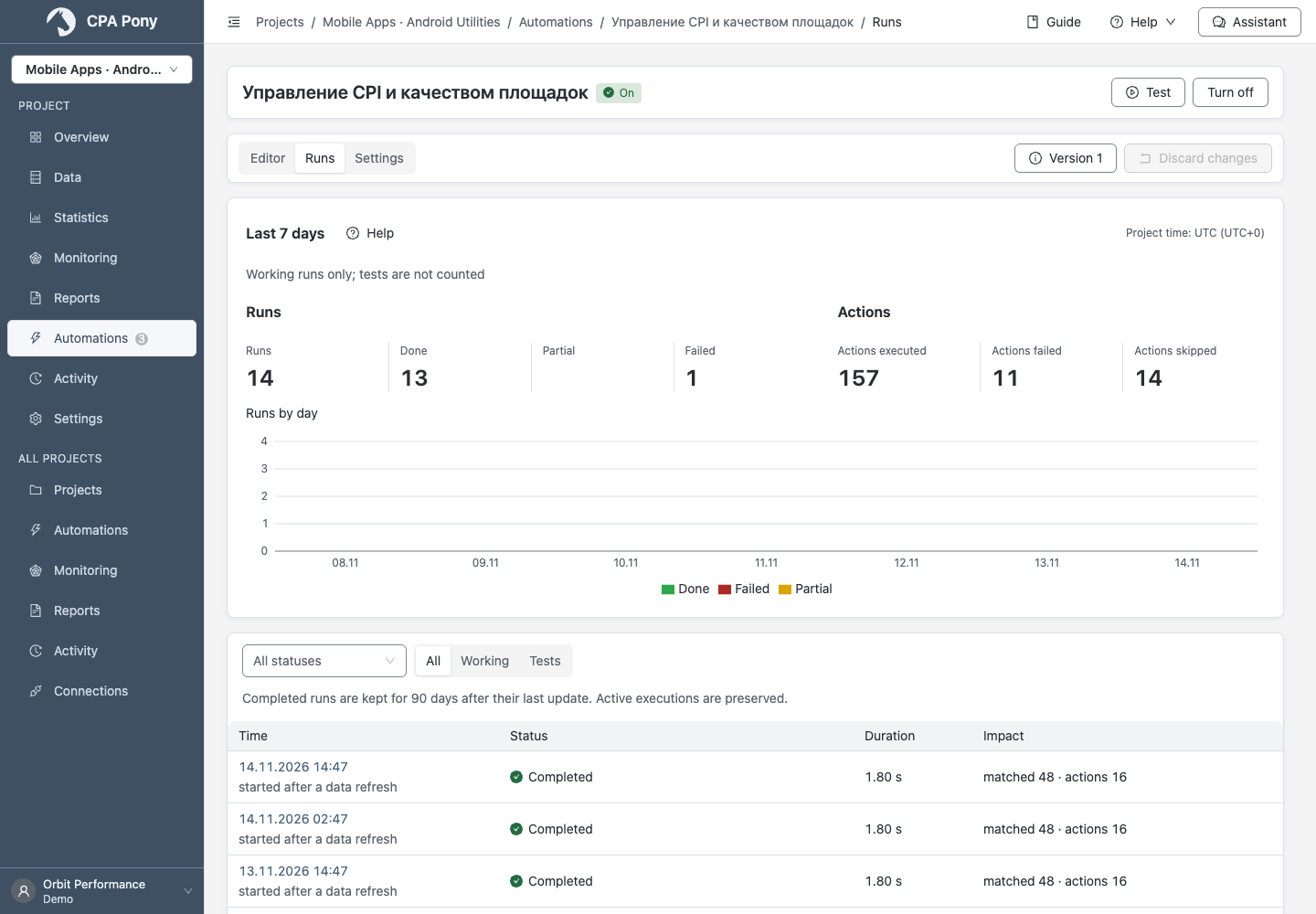
The seven-day summary counts only working runs and does not depend on list filters. Tests do not perform service operations or send notifications.
Read the result
In the run card, check:
- Outcome: status, trigger, time in the project's time zone and action counts.
- Data: sources used and their state at the time of the run.
- Steps: which objects passed, and where errors or skips occurred.
- Actions: what was executed, failed or skipped in services.
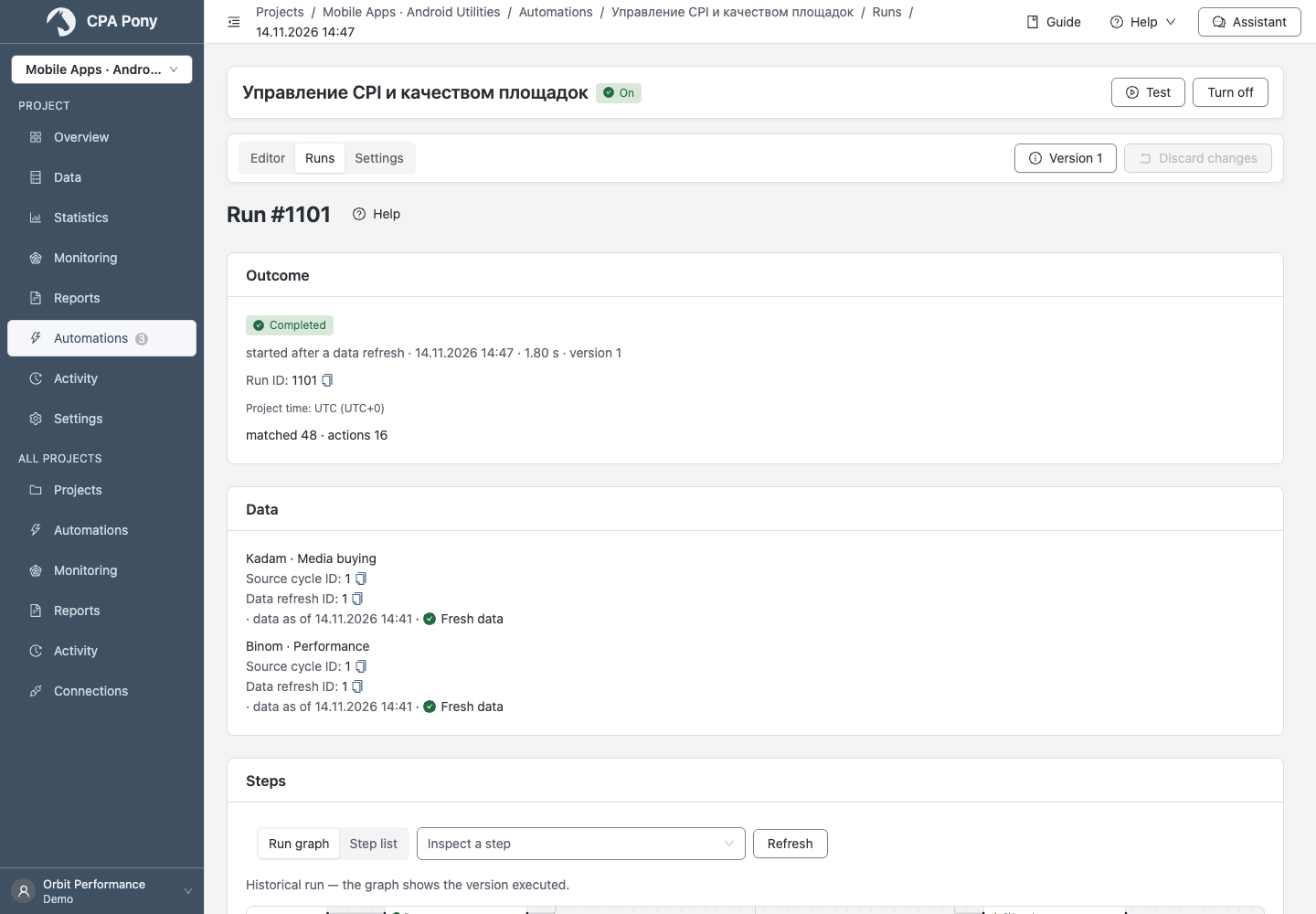
Select a step on the graph or in the Step list. Show objects opens the available sample; search works within that sample. It may be limited to the first 100 objects, so an absent object was not necessarily excluded from processing.
The graph shows the saved version used by this run. Editor changes do not change past results. If an older run has no graph, use its step list.
While a run is active, enable Follow execution. If automatic refresh stops, select Refresh: this reads the state without starting another run.
Investigate an error or skip
| Cause | What to do |
|---|---|
| A condition has no data | Check the period, selected metrics and coverage. Missing data is not zero or a negative condition result. |
| A source, dimension or link is unavailable | Fix project data or step settings, then validate and publish the graph. |
| Too much history | Shorten the period or reduce the object selection. |
| The period is outside your plan's history | Choose later dates or a suitable plan. Refreshing does not remove this restriction. |
| Data is not reliable enough | Check the project refresh and wait for another check. |
| A repeated action was skipped | Check repeated-application protection and the pause between actions. |
| A service error | Check the connection and the actual result in the service. |
Action outcome unknown means the service may have completed the operation. Check the object directly in the service before repeating it. If the connection address points to an internal network, correct it: this cause is not retried automatically.
After data preparation takes too long, a data-refresh or webhook run may be deferred until the displayed time. New triggers before then are skipped. A configuration error can put the automation into Paused; read the reason in its card.
Stopped runs and notifications
Disabling an automation cancels current runs, including pause steps. Action steps stop between requests, so counters may still change. Completed operations remain in effect. The card shows the cancellation reason and interrupted steps; a blocked team can also stop a run.
For notification results, distinguish queued, delivered, no recipients and undelivered messages. Being queued does not mean delivered.
Allow an action again
Select In the log on an action to open it in Activity. Allow repeat execution clears the already-applied mark for a future run; it does not execute the operation immediately. The pause between actions still applies.
Reading results requires project statistics access; allowing repeats requires execution permission. If you need different logic, edit and publish the graph.
Step data and retention
Select Show step data for details. Open a nested field and use Up one level to return; large tables have pages. Copy copies the full diagnostic data rather than just the visible page.
Step data is kept for 14 days after completion. Data shared by several runs is kept for 14 days after its last use. Completed run cards are kept for 90 days after their last update; active runs are retained.
After detailed data is cleared, available summaries and results remain. A message that data is no longer stored does not mean the run had an empty selection. A terminal step may have no output; check its objects and actions.
If data cannot be read, retry loading. For support, copy the Run ID from the summary or test window and include diagnostics. For request failures, follow the general instructions.