

Automations
An automation checks project data and performs actions, such as disabling selected objects or sending a notification. Open Automations in a project. The general section lets you find automations across projects by name and state.
Create an automation
- Select Create automation.
- Find a template by task or category. Open Template steps and review what it does.
- Check its requirements for sources, metrics and links.
- Select Use template, map the sources and enter a name.
- Create the automation and open its editor.
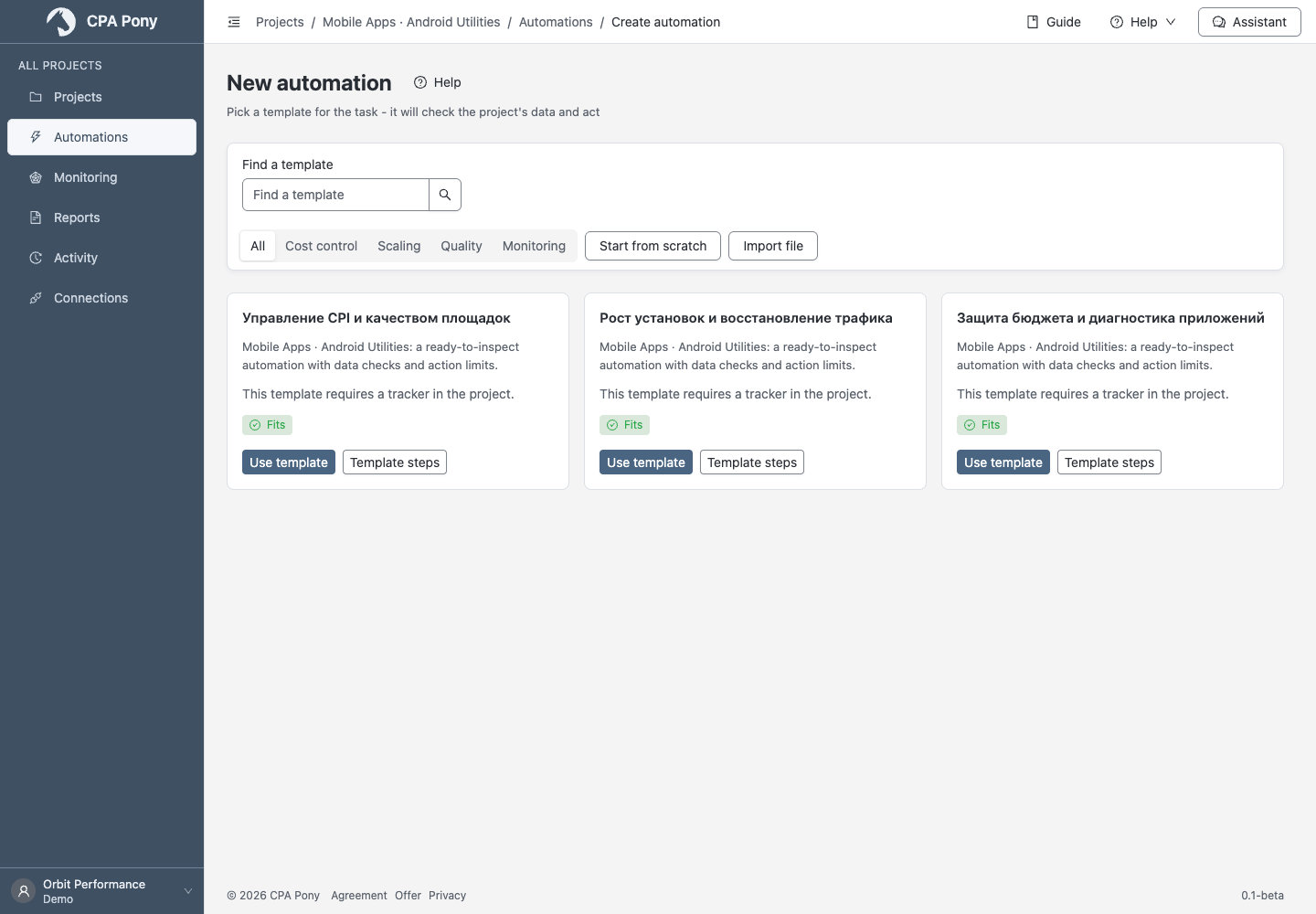
If a template allows a draft with warnings, resolve them before publishing. Adjust its thresholds for your task. If there are no sources yet, add them in Data first.
Start from scratch opens an empty graph. Import file lets you transfer an automation from YAML/JSON: choose the file, map its sources and review migration warnings. Use the current cpapony-scenario/v1 export format; old trigger/workflow v1 files are not accepted. Importing does not enable the automation.
Your plan's limit counts only enabled automations. You can create, copy or import a draft when the quota is full. Free up a slot or change your plan before enabling it. Viewers can read automations but cannot create them.
Configure the graph
- Open Main automation parameters or select a step on the graph.
- In the trigger step, choose how to start and set the analysis period using the project's calendar.
- Configure sources, conditions and actions. Choose metrics and operations from the available options.
- Check Safeguards: exclusions, data reliability and repeated application.
- Use Add a step and connect the required outputs. Its hint explains where it will be added; dragging onto a connection inserts it between two steps.
- Wait for All changes saved.
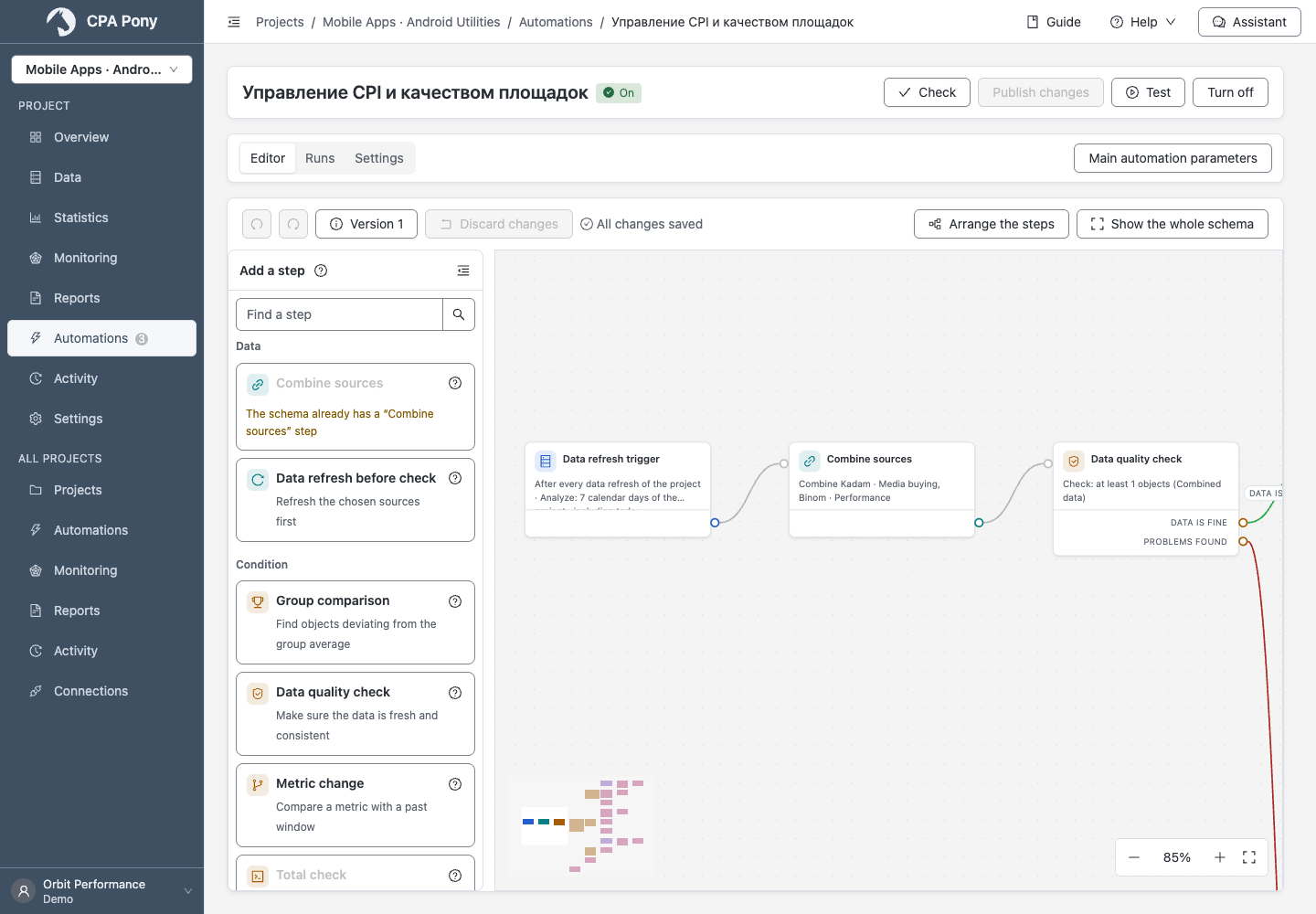
Select a step to edit its settings. The ? icon opens its section in the step reference; ⓘ beside an option explains its purpose.
Arrange the steps tidies the graph; Show the whole schema helps you find all branches. Undo and redo work within the current editor session. On a phone, the graph is available for viewing; use a wide screen to edit it.
Draft and published version
Changes are saved automatically to a draft. An enabled automation continues using its published version until you publish the changes.
Validate, test and enable
| Action | Result |
|---|---|
| Check | Checks the graph and settings without starting a run or reading statistics. |
| Test | Saves the draft, then checks it against project data without service actions or notification delivery. |
| Publish / Publish changes | Makes the prepared graph the working version. Does not enable a disabled automation. |
| Turn on | Allows working runs using the configured trigger. |
Fix errors, test, and review the run result: which objects passed and which actions were proposed. Then publish and enable. Publish and turn on combines those actions; read the confirmation of effects on services.
If a button is unavailable, read the reason. Testing and publishing require successfully saved changes.
Turn off stops future automatic runs and cancels current ones, including runs waiting in a pause step. It does not undo completed service operations. An action may still be finishing its current request; check the run result.
Set recipients
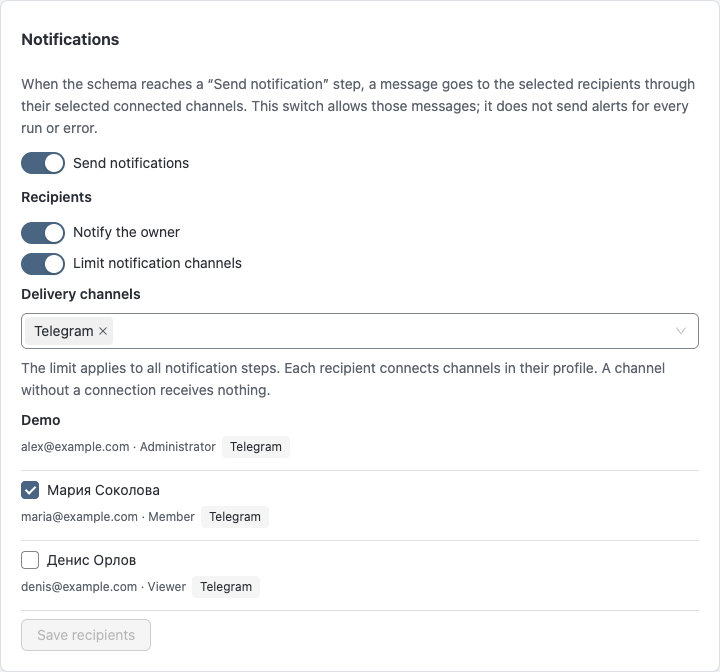
On Settings, the name and recipients are saved separately. The Send notifications switch applies immediately and permits messages from notification steps, rather than alerts for every run. Under Recipients, choose members and turn Notify the owner on or off, then save.
Limit notification channels controls which channels this automation's steps can use. When the limit is off, the automation does not restrict the available channels. To allow only certain channels, turn the limit on and select at least one. Turning the limit off clears the selected list.
Each notification step can choose its channels separately. An empty step selection means all channels allowed for this automation. Delivery is possible only through those channels that the recipient has connected in their own profile; email must also be verified and enabled. Recipients need project access. Limiting channels does not connect messengers or guarantee delivery: check recipient warnings.
If changing the limit reports that a channel is in use, open the indicated step and correct its selection. Save the correction for a draft; if the conflict is in the published version, publish the corrected graph first. Then retry the limit change. Queued notifications also respect the current limit; a disallowed channel is not replaced with another.
To stop this automation's notifications, turn off Notify the owner, deselect other recipients and save. The owner continues receiving system notifications.
Start by webhook
After publishing a webhook trigger, its address appears in Settings. Keep it secret. Renew the address immediately invalidates the old address.
An accepted event does not confirm that actions ran: check Runs. During maintenance, the sender receives HTTP 503; configure a retry after the time in Retry-After. Without a retry, that event will not start an automation. Previously accepted events may wait until maintenance ends.
Resolve conflicts or a paused state
If another tab changes the draft, autosave stops and preserves your edits on screen. Select Compare changes. Merge and save is available when different steps were changed and connections do not conflict. Otherwise, use the comparison to resolve the conflict or explicitly load the latest draft and discard your edits. You can Download local changes before discarding them.
Paused means a configuration error. Read the reason, fix the steps and publish a new version, or complete a successful manual run. Disabling and enabling alone does not clear the pause. Skipped-run counts distinguish a previous run still in progress from plan restrictions.
If work is deferred until a data refresh or a specified time, check the data and wait until then. This differs from a configuration error. For request failures, follow the general instructions.
Copy, export or delete
Create a copy creates a disabled draft in the same project. YAML/JSON export includes the current graph and its custom metrics, but not connection credentials, the webhook address, recipients or run history.
Before sharing a file, use Exclude personal object lists if needed, and review its other text and settings.
Deletion is permanent
Deleting an automation removes its versions, runs and action records. If deletion is unavailable while action steps are stopping, wait for them to finish. Disable the automation for a temporary stop.