

AI settings
Open AI settings in the user menu. Your mode is personal within the current team. Your own connection belongs to your account and is used across all teams.
Choose a mode
Select AI mode and Save. Currently used shows the active mode. If the plan or connection prevents use, read the reason under AI unavailable.
| Mode | Budget used |
|---|---|
| Built-in AI | The team's shared token pool, renewed on the first day of each month in UTC. |
| Own connection | Paid through the selected AI service; it does not use team tokens, even when the pool is empty. |
Refresh rereads token usage. Opening the page does not itself send an AI request.
Configure your own connection
- Select Configure own connection.
- Choose the protocol and enter the base URL, model identifier and secret key.
- If your model requires the parameter, enable max_completion_tokens (OpenAI reasoning). This flag is not used for Anthropic.
- Save the settings. Saving does not test them with an AI-service request.
- Separately select Own connection mode and save it.
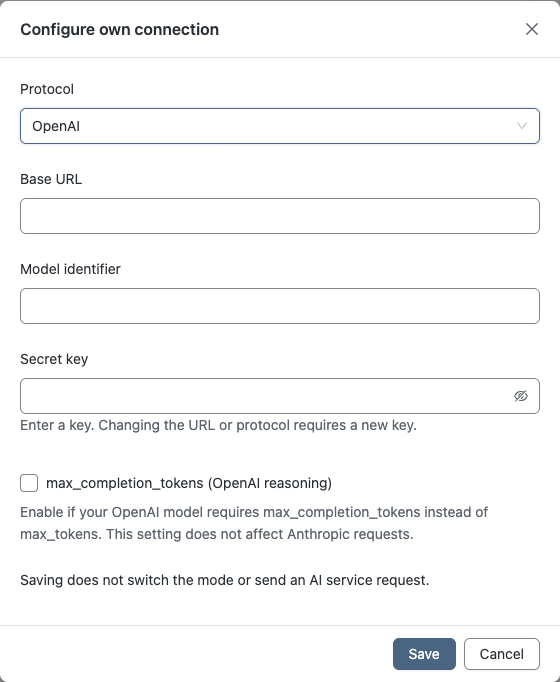
With an unchanged URL and protocol, leaving the key blank keeps the existing secret. A changed URL or protocol requires a new key. Saved keys are not shown.
If your plan disallows an own connection, you cannot configure it, but can delete an existing one.
Account-wide deletion
Delete own connection removes its key and settings across all teams. The mode does not switch automatically: select built-in AI separately.
Test AI
Select Check AI, read the data-sharing notice and confirm. This is a real request that consumes the selected mode's budget.
If the outcome is unknown, select Check the same attempt. Do not start a new request merely to find out what happened to the previous one. If rate-limited, wait until the stated time.
Data sharing
Before sending, read the current notice and Privacy Policy beside the settings. The notice describes built-in AI providers and terms for your own connection. Do not send secrets or third-party personal data.
Next: Assistant and team conversation visibility. For request failures, follow the general instructions.