

Project settings
Open a project and select Settings in its sidebar.
Change settings
- Change the name, refresh interval or other settings you need.
- Read the field explanations: available intervals depend on your plan, and the time zone may depend on the service.
- Select Save in the changes bar that appears.
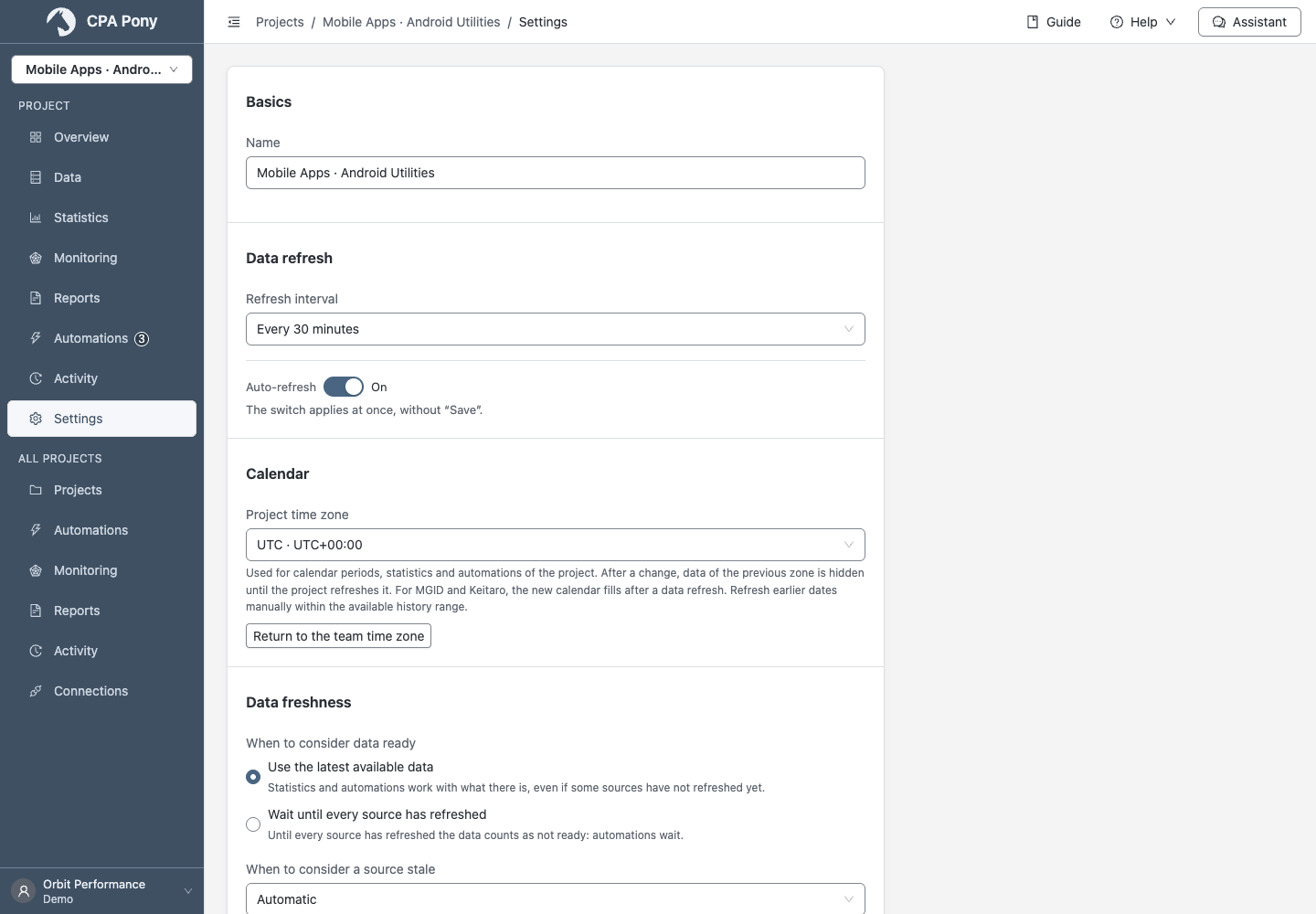
The Auto-refresh switch applies immediately without selecting Save. You can discard other unsaved changes; the application warns you before leaving the page. Settings cannot be changed with view-only access.
Calendar and freshness
The time zone defines calendar periods for statistics and automations. After a change, data from the previous time zone is not visible in the new calendar until refreshed. Follow the notice and refresh the dates you need within the available history.
Under Data freshness, choose when the data is ready to use:
- Use the latest available data — work with data already received, even if some sources have not refreshed yet.
- Wait until every source has refreshed — automations wait until all sources are ready.
The stale threshold determines when a source receives a warning. Automatic uses twice the refresh interval.
Stop or remove a project
| Action | Result |
|---|---|
| Turn off auto-refresh | Stop regular data refreshes. |
| Pause the project | Stop data refreshes and automations while keeping the project in the list. |
| Archive the project | Hide it from working lists and the project selector; refreshes and automations do not run. |
| Delete the project | Permanently delete the project and its related settings. Review the full deletion summary and dependencies before confirming. |
You can resume a paused project or restore an archived one.
If dependencies block deletion, resolve them using the links in the confirmation. A separate warning may list objects in other projects that will lose metric values.
Connections and the statistics they have collected remain available for use in other projects.
Deletion cannot be undone
Use pause or archive for a temporary stop.