

MCP access and model memory
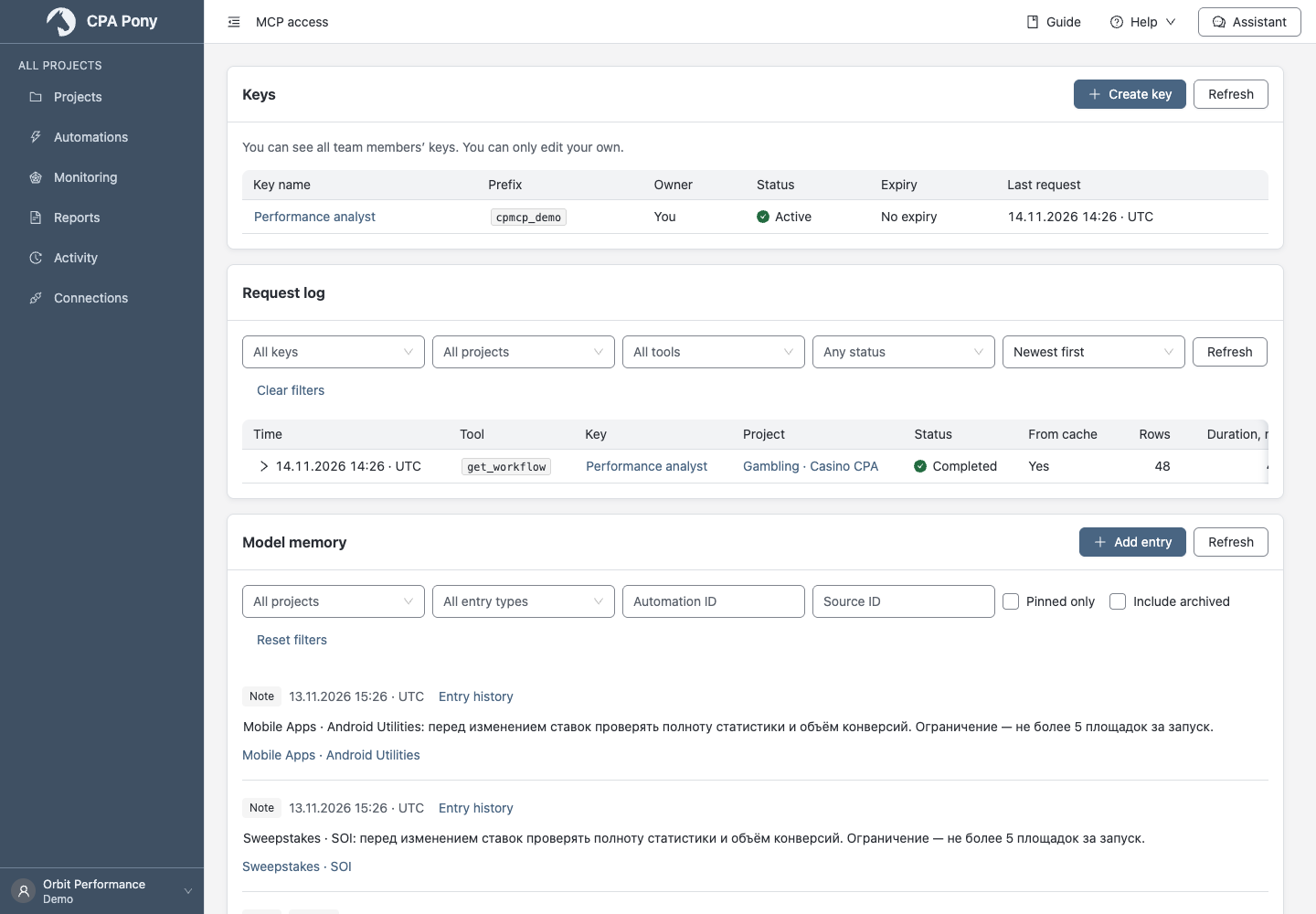
Open MCP access in the user menu to connect an external AI client to team data. This is separate from the built-in assistant.
When the owner enables contact replacement in team settings, the client receives EMAIL and PHONE aliases for recognized contacts. Each alias is scoped to one MCP key. Turning replacement off allows the client to receive the original values.
Create a key and connect a client
- Select Create key and enter a name.
- Choose specific projects or all accessible projects, including future ones. An empty selection grants no project access.
- Choose permissions and expiry; check the time zone.
- Create the key and save its full secret from the separate window.
- Open Client setup and use the address and configuration shown there. Store the secret in the indicated environment variable.
The key is shown once
After closing the window or reloading, you cannot retrieve the full secret. If lost, revoke the key and create another. Do not share keys in messages or screenshots.
Choose permissions
| Mode | Capabilities |
|---|---|
| Read | Read available data, automations and personal memory. |
| Edit | Also edit memory and automation drafts. |
| Manage | Also refresh data and manage automations; operations in external services are possible. |
The initial mode is read-only. Automation deletion is a separate permission, off by default. Actual access is also limited by the plan, selected projects and key owner's rights. Changes to the tool catalogue do not expand existing permissions.
External clients use the key's permissions
MCP operations may execute directly. Built-in assistant confirmation cards do not provide an additional check for external clients. Grant only the permissions needed.
Change or revoke a key
Open a key and review its projects, permissions and expiry. You can edit your own keys. Owners and administrators see team keys and can revoke others' keys, but cannot edit them. Revoking ends access; the record remains readable.
If your plan disallows MCP, key creation and permission expansion are unavailable. Reading, revoking, renaming and narrowing access remain available. Team owners and administrators can read a key's change history.
Review requests
In Request log, select a key, project, tool and status. Expand a record for the outcome, denial reason and further details. If the list is empty, reset filters and check permissions.
The log does not contain full keys or request/response text. After key deletion, its name and prefix remain with Key deleted, without a link to the key; owners and administrators can read those records. Sizes in the details are character counts, not tokens.
Personal memory
In Model memory, read saved context or select Add entry. Choose a project, optionally an automation or source, then the entry type and text. You can pin important entries. An existing entry's object links cannot be changed.
Memory belongs to you, not a particular model. Even administrators cannot read someone else's text here. Reading requires access to every linked object. The card offers editing, versions, archiving and restoration; archived entries cannot be edited.
Filter by project, type, pinned state and archive. Each author can have up to 1,000 active entries; the archive is kept for 180 days. Deleting a linked object or team membership deletes the corresponding notes.
If the assistant reads a note into a shared conversation, its text becomes visible to that conversation's readers. For request failures, follow the general instructions.