

Custom Metrics
Custom metrics let you build your own metric dictionary for a specific ad network or tracker account (Clicks, Cost, etc.).
They solve the following tasks:
- Use a statistics field that doesn't exist in CPA Pony. The network returns a field (for example,
viral_shares) that is missing from the system registry — create a metric mapped to that field and build trigger and workflow conditions on it without waiting for a registry update. - Calculate derived values. Formulas over existing metrics: EPC, Profit, your own ROI that accounts for commission — any value you would normally calculate in Excel.
To create a custom metric:
- Click [Networks] or [Trackers] in the menu, depending on where you want to create the new metric.
- Next to the desired ad network or tracker account, click the custom metrics icon.
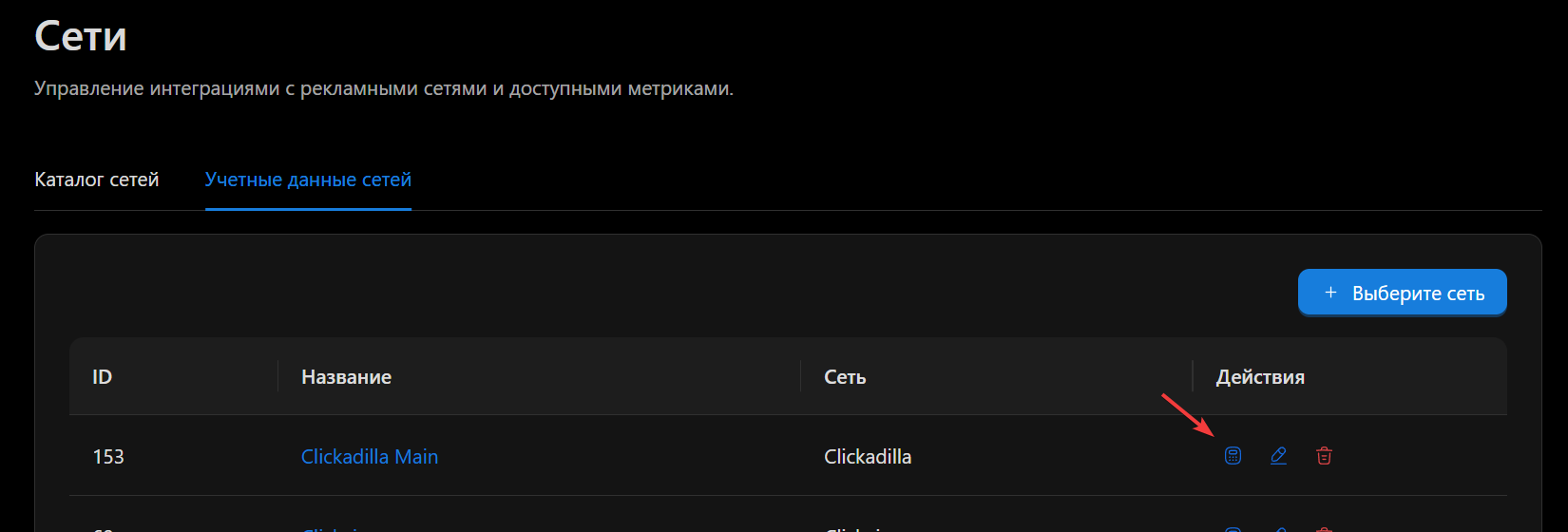
- In the window that opens, click the [Add Metric] button
A window will open:
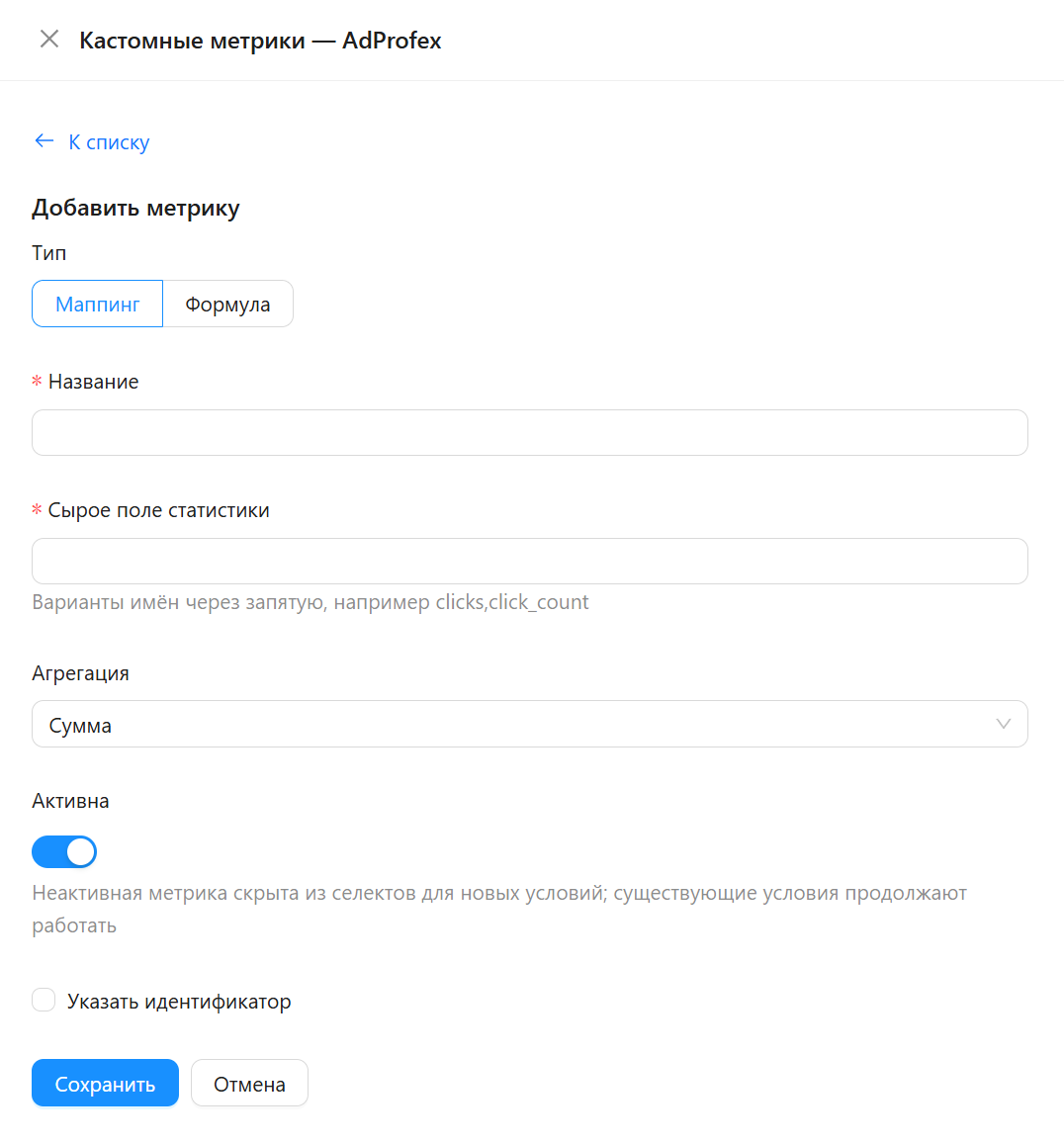
A brief description of the window's fields:
- Metric Type:
- Mapping — binds the metric identifier to a raw statistics field of the provider
- Formula — an arithmetic expression over other metrics.
- Name — an arbitrary metric name; this is what you will see in triggers and workflows when selecting a metric
- Aggregation — how the value is determined over a range. Take displaying statistics for a month as an example:
- Sum — the values are added up
- Average — the average value is taken
- Minimum — the minimum value is taken
- Maximum — the maximum value is taken
- Last value — the last value is taken
- Active — a switch that enables or disables the metric.
- Set identifier — a field for overriding the unique identifier; it lets you override standard metrics. Needed only in very rare cases.
WARNING
Before using the Set identifier option, we recommend asking a question in the support chat or by email support@cpapony.ru
The next set of fields changes depending on the selected metric type:
Mapping type:
- Raw statistics field — the field name in the provider's API response. You can list several options separated by commas (
conversions,goals,leads); the system will pick the one actually present in the response.
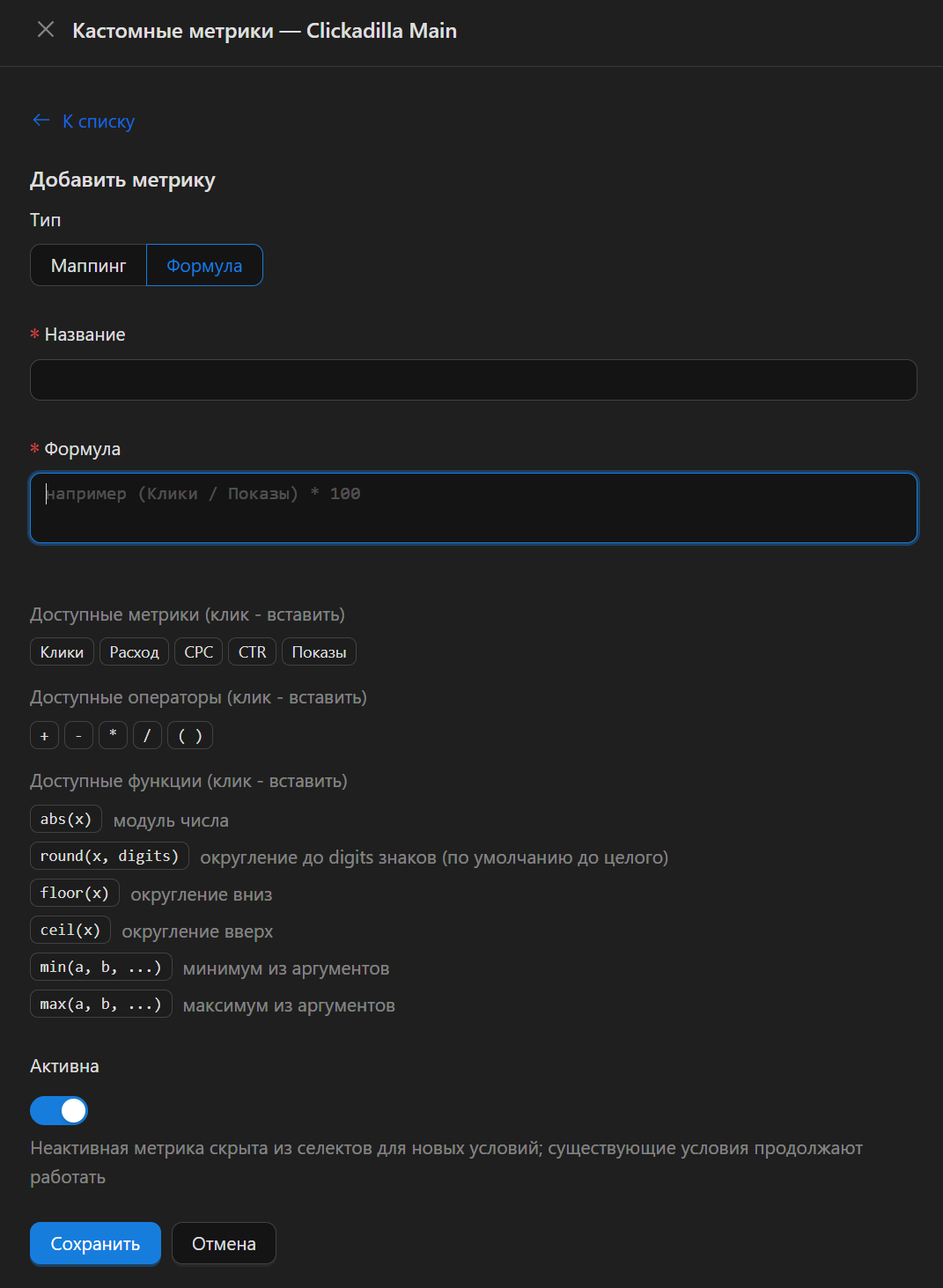
Formula type:
- Formula — the formula used to calculate the metric value. You can use identifiers of standard metrics, custom metrics, numbers, math operators, and functions. The available values (other than numbers) are listed under the field.
Mapping
This type adds a metric that works directly with statistics.
CPA Pony fetches statistics via API, and in the "Raw statistics field" you specify the value you want to use in triggers.
All the main metrics are already included in the system, but if, for example, your account returns a non-standard API schema, you can adapt the system to it.
This field is also useful when an ad network or tracker renames a field in its API — instead of waiting for a CPA Pony update, you can quickly add a metric.
Formulas
This type is computed and evaluated dynamically when statistics are fetched.
Examples
# EPC — revenue per click
revenue / clicks

# Margin percentage
(revenue - cost) / revenue * 100

# Cost per conversion rounded to cents
round(cost / conversions, 2)

# The worse of two values
min(cr, my_backend_cr)
Available operators and functions
Operators:
| Operator | Meaning |
|---|---|
+ - | Addition, subtraction |
* / | Multiplication, division |
-x | Unary minus |
( ) | Grouping |
WARNING
The % operator is not supported — neither as modulo nor as a percent sign. For percentages, multiply by 100: clicks / impressions * 100.
Formula limits: up to 500 characters, named function arguments are not supported, "formula of a formula" chains can be up to 5 levels deep.
Functions:
| Function | Arguments | Description |
|---|---|---|
abs(x) | 1 | Absolute value |
round(x) / round(x, n) | 1–2 | Round to n digits |
floor(x) | 1 | Round down |
ceil(x) | 1 | Round up |
min(a, b, …) | 2–8 | Minimum |
max(a, b, …) | 2–8 | Maximum |