

Activity
Use Activity to review what happened in projects and automations. Select a project in the general section; a project's own Activity already shows its events.
Find an event
- Choose a period and a mode.
- If needed, select an automation, status and attention state in Filters.
- Expand a record to read details or open its run.
| Mode | What it shows |
|---|---|
| All events | Runs, data refreshes and monitoring events. |
| Automation runs | Working runs and their outcomes. Find tests on the Runs tab. |
| Data refreshes | Refresh results and reasons for errors. |
| Monitoring | Saved observation events. |
| Actions log | Individual operations on service objects. |
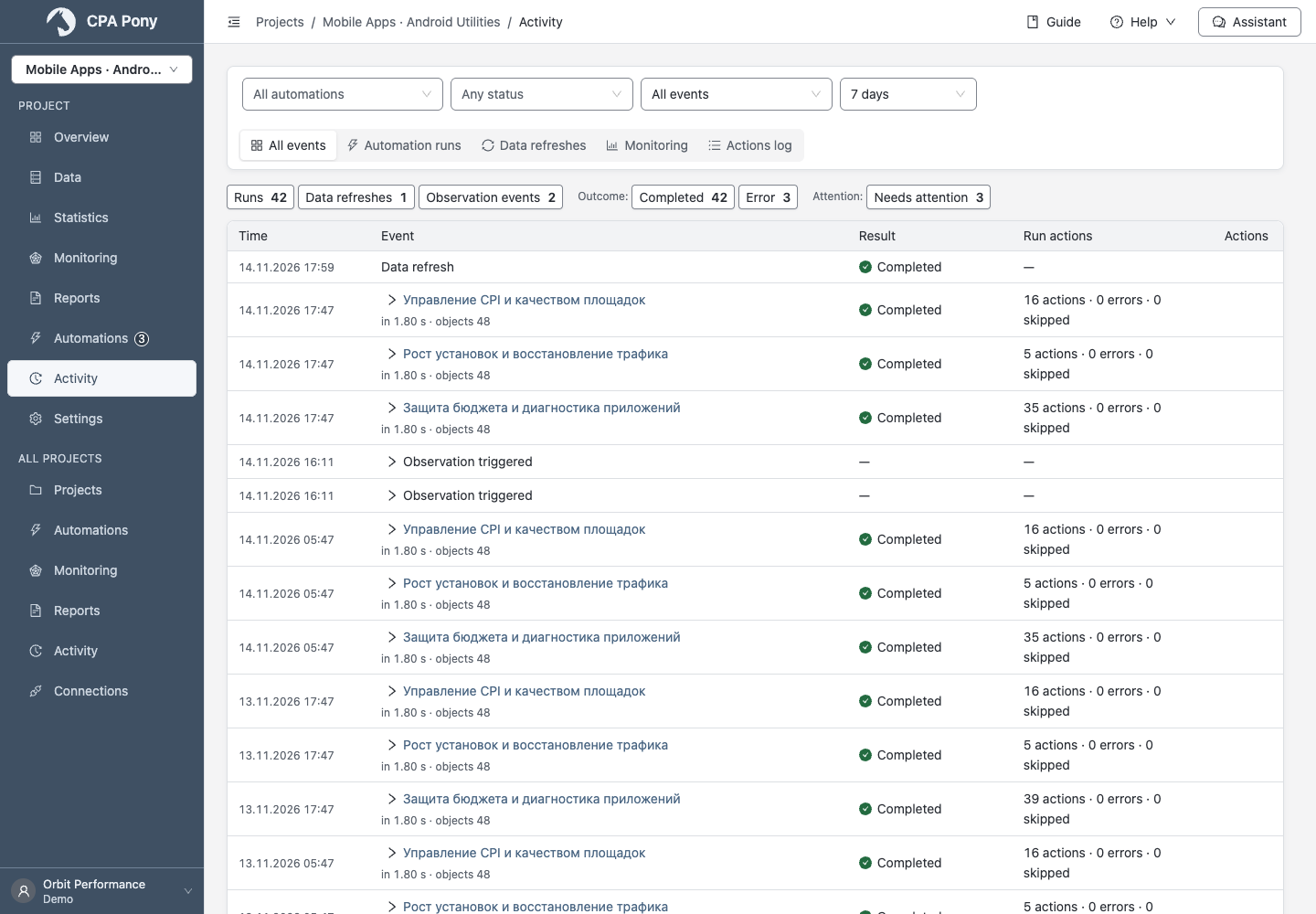
Counters use the selected period and filters. Select a counter to filter, and select it again to clear that filter. On phones, additional options are under Filters.
An expanded run shows its actions; a monitoring event shows its saved measurement. Select Show more to continue the feed. The log is kept for 90 days; no entries in a period does not mean the automation is disabled.
Filters are stored in the address. Sharing the link with a member does not give them additional access permissions.
Mark errors read
- Find errors that Needs attention.
- Mark an individual error, or select Mark errors as read and choose rows.
- Review the selection and confirm.
The mark is shared by the team. It clears the attention state but preserves the historical error result. It does not fix a connection or retry the operation. Runs and their actions are marked independently.
Bulk marking affects only selected loaded rows. Marking requires edit permission; viewers can read the state but cannot change it.
Find an action on an object
- Select Actions log.
- Set a period. In Filters, choose a connection, service, action or exact object/campaign ID.
- After selecting an automation, you can also select an action step or condition.
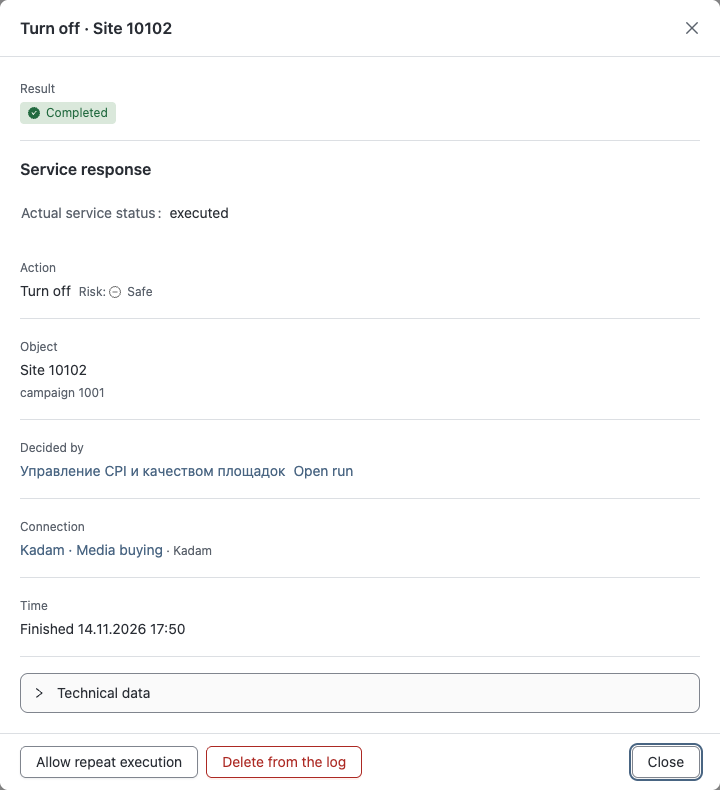
- Open a record and check its result, object, reason and service response.
- Open its run to inspect the data and condition that led to the action.
The condition filter uses the current graph; the Conditions column uses the graph saved at run time. They can differ after an edit. Use the page controls for more records, with up to 50 per page.
Already applied: Yes means an active mark; Cleared means a cleared mark. Records without a mark appear under Any. To find active marks for successful actions, choose Completed and Already applied: Yes.
Allow a repeat or delete a record
| Action | Consequence |
|---|---|
| Allow reapplication | Clears the already-applied mark for the selected objects. It does not execute the operation immediately; a future run can apply it if other conditions and the pause allow it. |
| Delete record | Removes history and releases the pause-between-repeats and daily-budget accounting. It does not clear the already-applied mark or undo the service operation. |
Read the confirmation before individual or bulk changes. You can allow reapplication for up to 100 selected records. If you lack permission for any selected automation, the entire reapplication request is rejected. Reapplication and deletion require execution permission.
Check the actual result
If an object's name is unavailable, check its type and ID. Its campaign or ad context helps distinguish otherwise identical objects.
For eTarg and Kadam actions, Service response shows the actual status, blacklist state, price or bid. Not set means no saved value; a multiplier such as x1.5 is not a price. A successful Kadam campaign enable action with Awaiting payment means the action completed but you need to check the balance.
If the action outcome is unknown, inspect the object directly in the service before retrying: the operation may have completed. An internal error alone does not confirm that support has been notified.
For support, copy the Run ID from the details. An error's Support code identifies an individual request. Viewing or copying diagnostics does not repeat the action.
If the list is empty, check dates and filters. If a request fails, follow the error instructions.