

Monitoring
An observation checks metric changes between completed periods or a trend in daily values. It uses saved statistics and can send notifications. Monitoring does not perform actions in an advertising account; use automations for those.
Create an observation
- Open Monitoring in a project and select Create observation. In the general section, choose a project first.
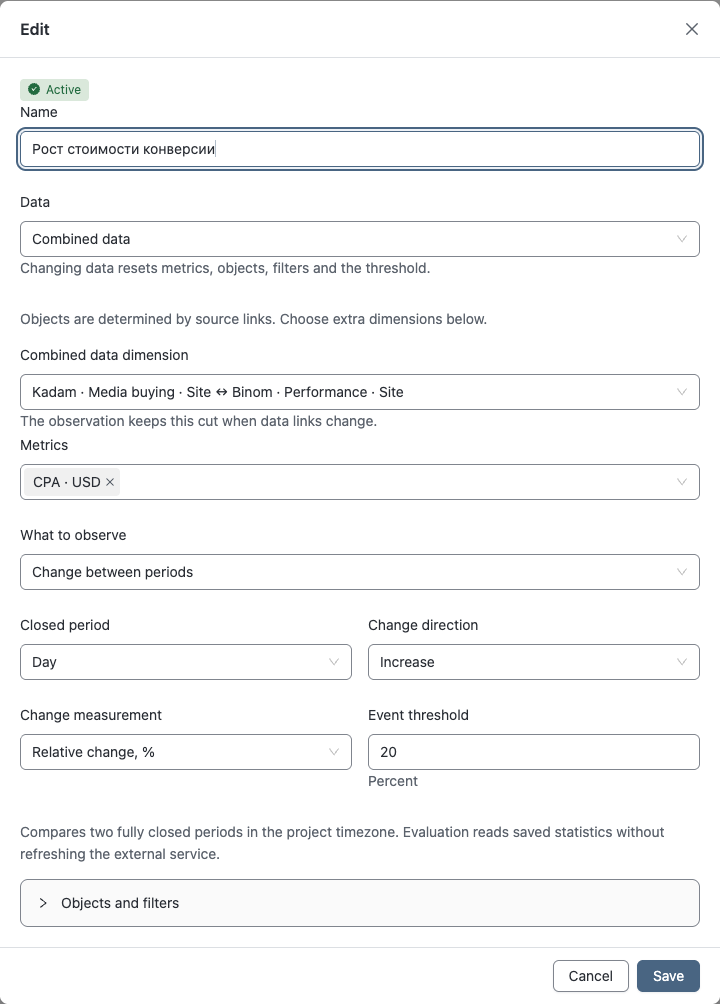
- Enter a name and select source data or Combined data.
- For combined data, choose the Combined data dimension, then the metrics.
- Choose what to observe and set a threshold.
- If needed, narrow the selection under Objects and filters, then save the observation.
| Your task | What to choose |
|---|---|
| Compare two completed periods | Change between periods: hour, day, week or month, then direction, measurement and threshold. |
| Track sustained growth or decline | Daily series trend: number of completed days, direction and percentage threshold. |
For example, to receive a notification about rising cost per conversion, choose that metric, Day, Increase and a percentage threshold. Check the unit beside the threshold: percentages, differences, percentage points and ratios represent different comparisons.
For a trend, set requirements for the number of points, gaps and data volume if needed. Before comparing hours, check in Statistics that the selected dimensions support hourly data.
Check state and result
Find an observation by name in the general section or the project. In its card, check the saved data selection, metrics, threshold and state.
Evaluate now checks statistics already received. To check fresh data, refresh the project first. Saving settings does not itself start a manual evaluation.
- Active means the observation can run checks; it does not confirm an event or notification delivery.
- Paused means you should read the reason and fix the settings through Edit. Renaming alone does not resume checks.
- Insufficient data means you should check the period, coverage and metric availability. Missing data does not mean zero change.
Changing the source resets related metrics, objects, filters and the threshold. Review them before saving. If a saved dimension is unavailable, explicitly choose a replacement.
Read events
Expand a record under Events. Check the object, metric, previous and new values, change and data quality.
Changing settings does not recalculate earlier events. Another evaluation may not add an event if the same event has already been recorded. If a volume limit prevented some events from being saved, the result says so.
Refresh events reloads the records without starting an evaluation. Events are also available in Activity, in Monitoring mode.
Set recipients
Under Recipients, choose team members and delivery channels, then select Save recipients. Include or exclude the owner using Notify the owner.
If no channels are selected, delivery is not restricted to particular channels: each recipient's connected channels are used, including verified and enabled email. Selecting specific channels limits delivery to them; it does not connect those channels for recipients. Recipients need access to the project and statistics and a connected channel. For messengers, check the Monitoring category in the bot.
To disable notifications for this observation, turn off Notify the owner, deselect other recipients and save. The owner will continue receiving system notifications.
An event in the log and a linked channel do not guarantee delivery. Check warnings in recipient settings if notifications are not arriving.
Access and limits
Your plan does not limit the number of observations. Permissions, project execution restrictions, available history and hourly data support still apply.
If a period falls outside your plan's history, choose a later period or a suitable plan. Refreshing data does not remove this restriction. Viewers can read settings and events; editing and manual evaluation require the appropriate permissions.
After a save error, correct the marked fields and save again. For connection failures, follow the general instructions.
Rename or delete
Select the observation's name, enter a new one and press Enter or move to another field. Escape cancels the edit.
Delete observation permanently removes its settings and event history. Future checks and notifications stop; project statistics are retained.