

Profile and security
Open Profile in the user menu for your account, notification, appearance and personal-data settings.
Name, email, password and sessions
In Profile, change your first and last names and select Save. If you leave with unsaved edits, you can stay or discard them.
In Security, verify your email using the six-digit code from the message. Wait for the displayed delay before resending. Your email is your login.
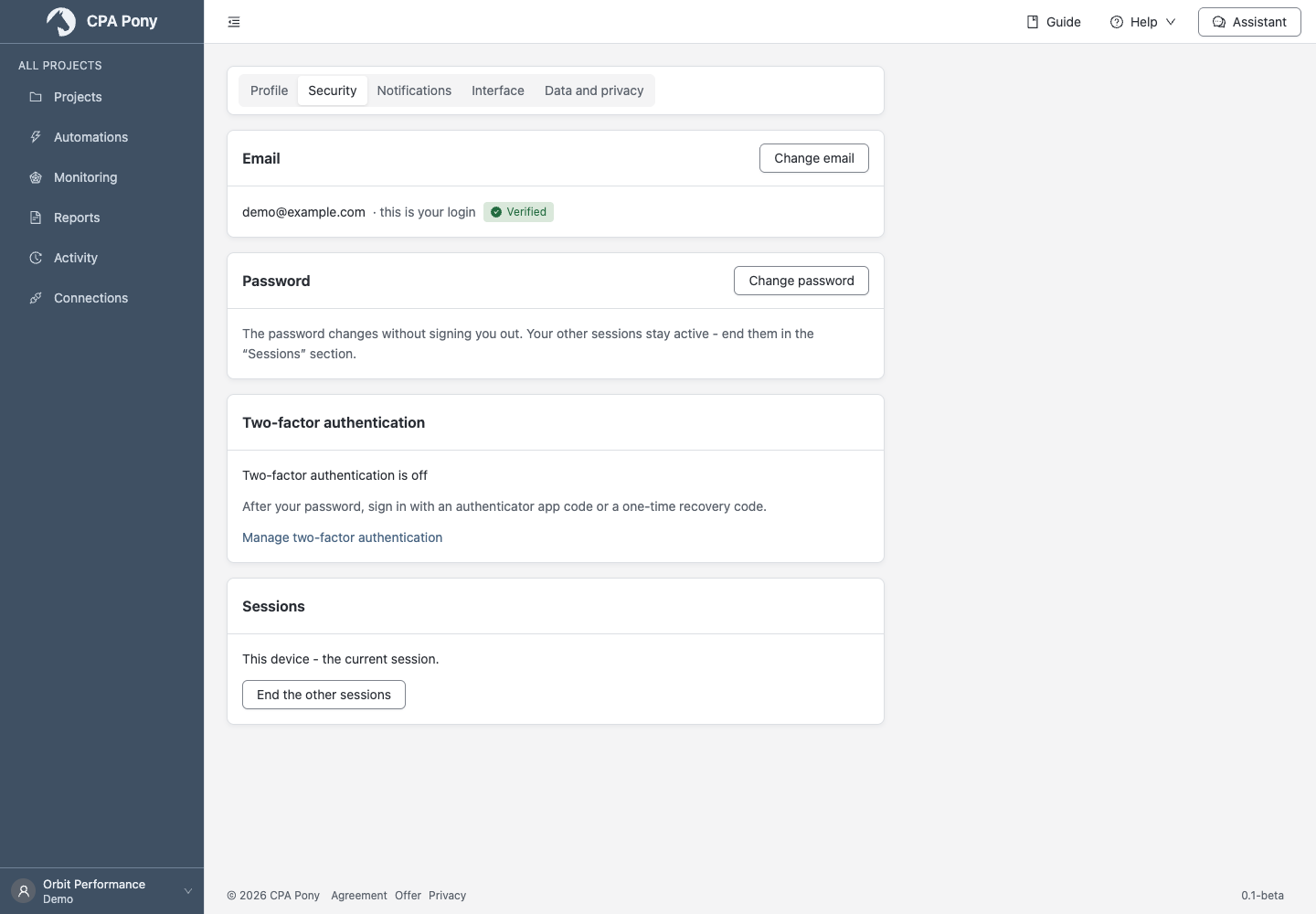
Change email requires the new address and current password. It changes immediately: use the new email for your next sign-in. A verification code goes to the new address and a notification to the old one. Email notification delivery pauses until the new address is verified.
Change password requires your current password and the new password twice. Other sessions stay active: use End the other sessions separately to close them. The current session continues.
Resetting your password by email ends previous sessions. Changing your password or email invalidates older reset links; request a new link on the sign-in page if needed. If your session expires, sign in again.
Two-factor authentication
In Security, select Manage two-factor authentication.
- Select Enable protection, enter your password and choose Get QR code.
- Scan it with an authenticator app or enter the displayed secret manually.
- Enter the app's six-digit code and confirm setup.
- Save the ten single-use recovery codes separately from the device. This set will not be shown again.
- Select I have saved the codes and Finish.
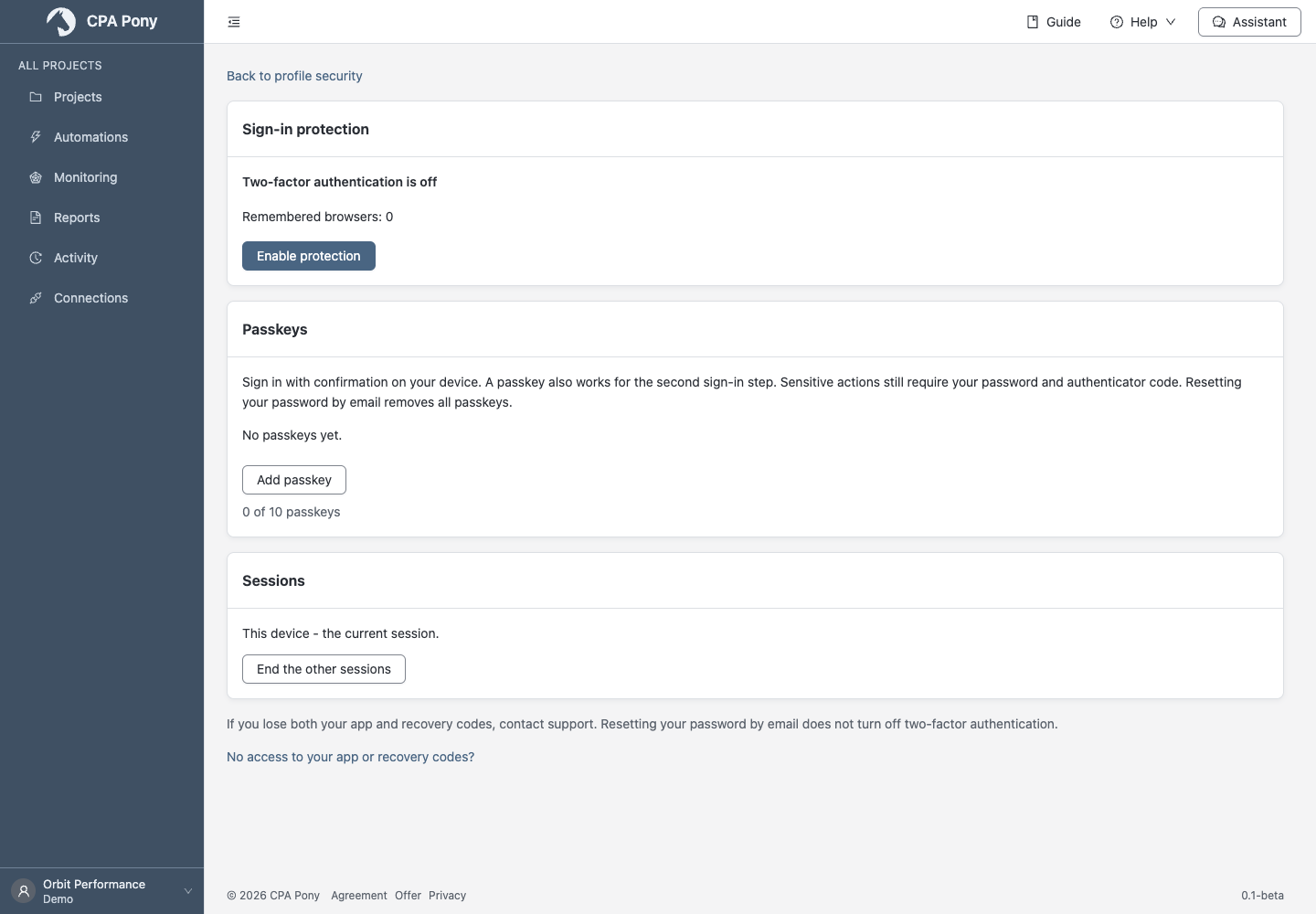
Enabling protection ends other sessions. If setup stops before confirmation, start again. After a network error during confirmation, check the protection state before retrying.
At sign-in, enter an app code or use a recovery code after your password. You have five minutes to confirm; reloading the page requires starting sign-in again. If attempts are limited, wait for the timer.
Regenerate codes requires an app code and immediately invalidates the previous set. Disable protection requires your password and an app or recovery code, ends other sessions and leaves password sign-in available.
If you lose both the app and codes, use No access to your app or recovery codes? to contact support. Resetting your password by email does not disable the second factor.
Remembered browsers
At confirmation, you can select Remember this browser for 30 days. Further sign-ins there will not need a second code. Ordinary sign-out does not remove this trust.
Forget all browsers revokes trust, including the current browser. Changing/resetting the password or disabling/resetting two-factor protection also revokes it. If a new browser is blocked after sign-in attempts, an email password reset clears that block while keeping the second factor.
Passkeys
In Security settings, add a passkey: confirm your password, and an app or recovery code if protection is enabled, then follow the device's system prompt. You can rename or delete a key; the list shows dates and the available limit.
On the sign-in page, select Sign in with a passkey without entering an email or password. A passkey can also confirm the second sign-in step. Important actions still require your password and app code.
An email password reset deletes all passkeys; changing the password in Profile keeps them.
Connect notifications
- In Notifications, choose Telegram, MAX or VK and select Connect.
- Open the bot and start a conversation; for VK, use the displayed code.
- Wait for the confirmed status. If the link expires, request another.
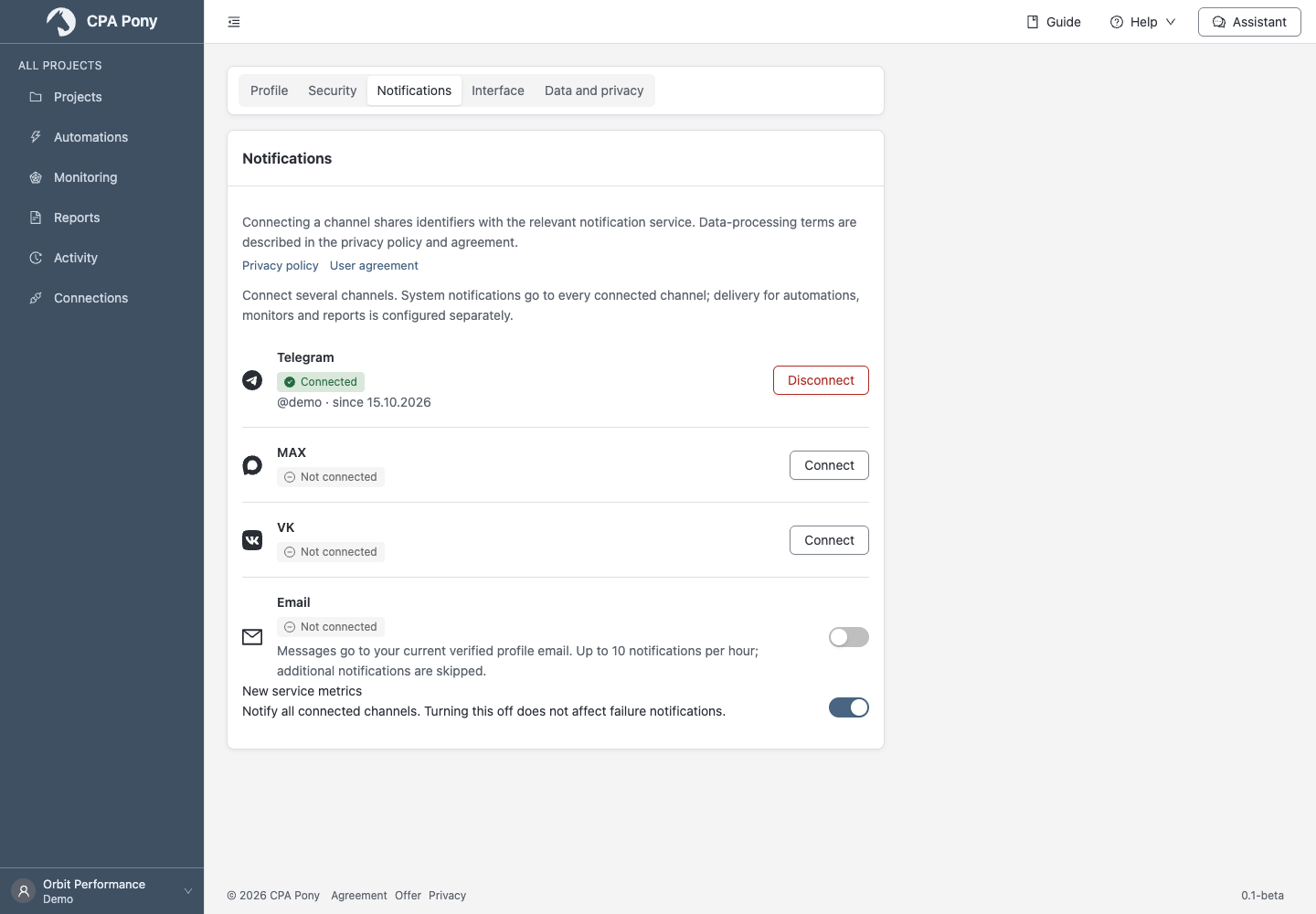
You can connect several messengers; disconnecting one does not affect others. Closing the window does not cancel a valid link.
Email is enabled separately and requires a verified address. If enabling it was rejected, verify the email in Security, then enable it again. System notifications use all connected channels. Email is limited to ten notifications per hour; further emails are skipped while messenger delivery continues.
Each recipient connects their channels in their own profile. Selecting a channel in an automation, observation or report does not create that connection. Connecting a channel does not make you a recipient of every event either: select recipients in the automation, observation or report. Automations also respect their allowed channels and the selection in each step. If a selected channel is not connected in your profile, messages cannot reach it. New service metrics controls metric notifications across channels without disabling failure notifications.
Language and theme
In Interface, select a language and light, dark or system theme. These options are also in the user menu. They are stored in this browser and do not change colleagues' interfaces.
Number display
In Interface, enable Round metrics to whole numbers and choose a direction. For example, −1.7 rounds up to −1 and down to −2. Without rounding, numbers show at most two decimal places.
The setting applies immediately in this browser. Calculations, automation conditions, sorting and CSV use original values.
Data and privacy
Review your consents and optional News and tips subscription here. If a consent needs acceptance, open the text and select Accept. Viewing a document or dismissing a notice does not accept it. If the edition changes during confirmation, read the new text and retry.
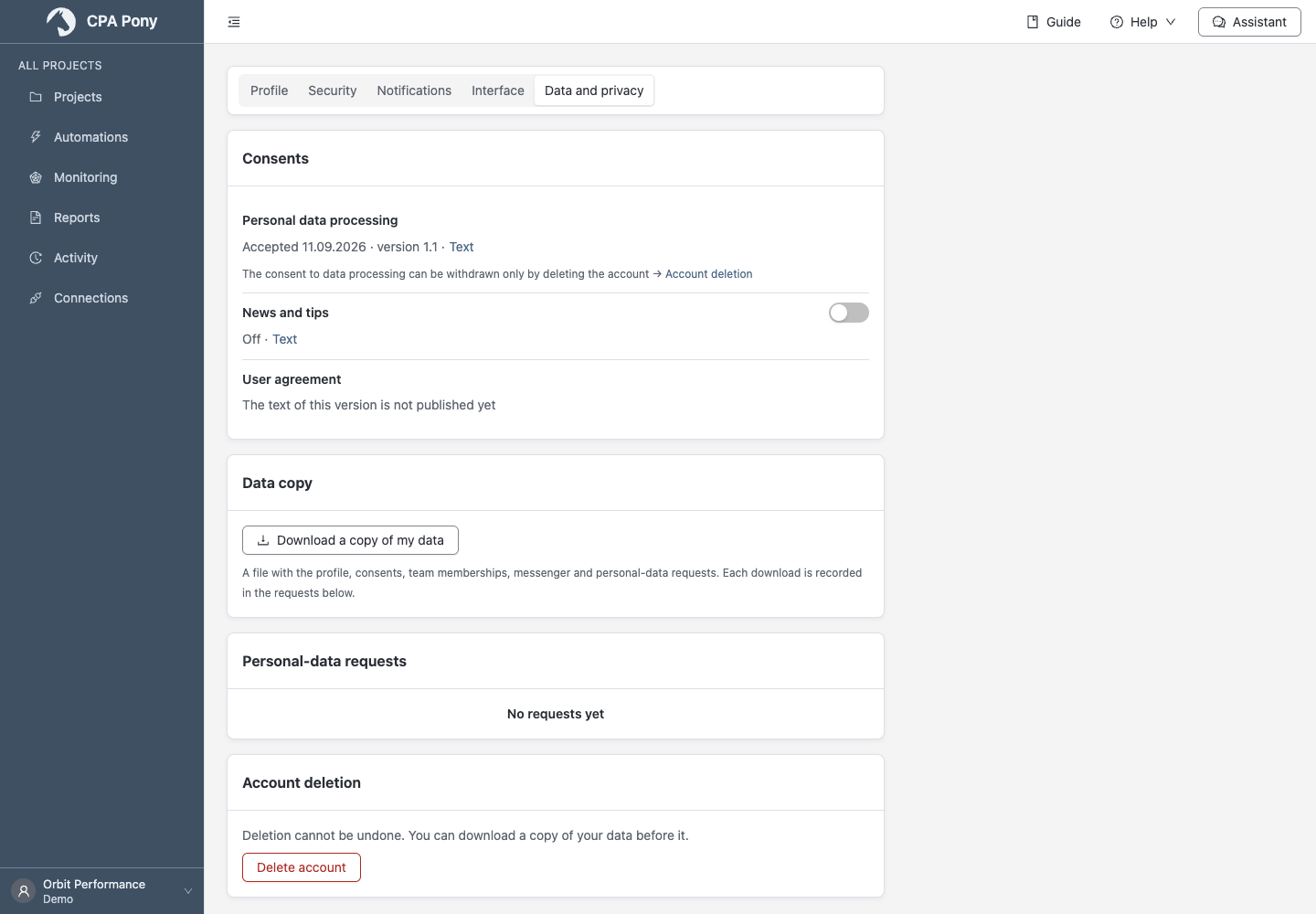
Read this edition opens the document you accepted; the current text is available separately. Future editions show an effective date and changes; the notice itself does not accept consent. If no English translation exists, the Russian document is shown with an explanation. General legal documents are linked at the bottom of the page.
Download a copy of my data saves personal data as JSON and adds the request to the history below. Export project statistics separately as CSV.
Unsubscribe from news and offers
Select Unsubscribe in a promotional email, then confirm Unsubscribe from mailings on the page. No sign-in is needed; opening the link alone changes nothing. Your account and service emails remain.
If the link is invalid, turn off the subscription in Data and privacy. Enabling it again creates new consent that old email links cannot change.
Delete your account
Download any data you need first. Review the teams in the confirmation, enter your password and confirm the consequences:
- Teams you own are deleted with their data; you leave other teams.
- Paid periods of deleted teams are lost without a refund.
- Once the request is accepted, you are signed out; deleted accounts cannot be recovered.
Declining a mandatory agreement involves a separate confirmed deletion, not automatic removal. Ordinary Sign out does not delete your account.
Inactivity and blocked teams
After six months without sign-ins or MCP requests by the owner and members, a warning announces deletion in 30 days. Signing in cancels deletion; teams with an active paid plan are protected.
If a team is blocked, working sections are replaced by a support message. Profile, privacy, personal-data export, consents, account deletion and sign-out remain available. You can switch to another team. Look for the block reason in the support email.
For request failures, follow the general instructions.