

Project data
Open a project and select Data. Here you manage Sources, Links between them and Custom metrics.
A source defines which data from a connection this project needs. For example, the same tracker connection can serve several projects with different campaign and metric selections.
Add a source
- Under Sources, select Add source.
- Choose a connection and select Next. If the connection you need is missing, you can add it from the form.
- Choose the data to retrieve: Whole account, a specific campaign or By split. Available options depend on the service.
- Select the dimensions and Source metrics, then finish adding the source.
- After a refresh, check the source's status and available period in the table.
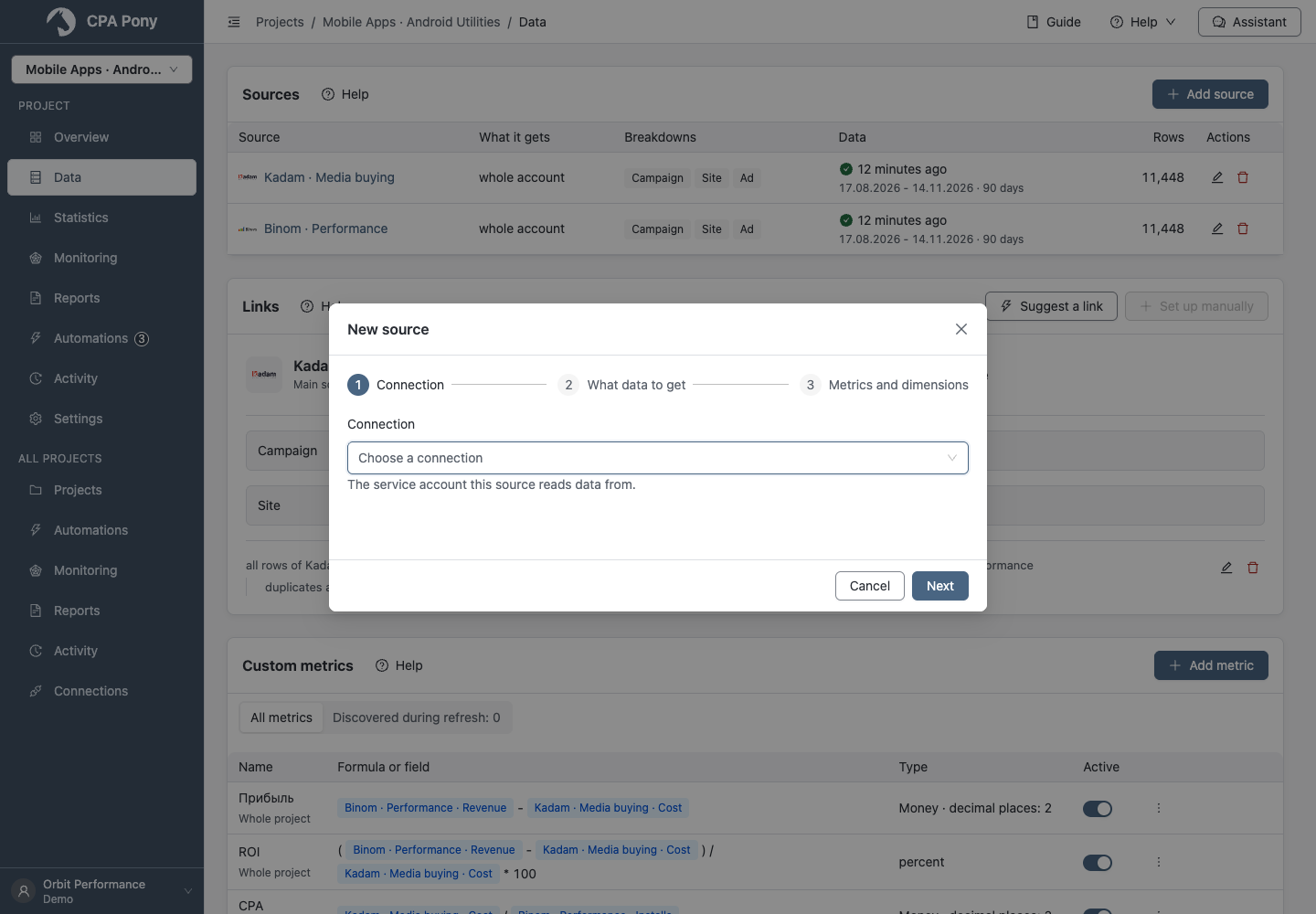
Choosing Whole account requires additional confirmation: the data volume will be bounded only by the service's limits. Cancel returns to setup without saving.
If the connection needs authorization or is being deleted, resolve its status in Connections first.
Source metrics
In the source form, choose the metrics the project needs. All standard service metrics are selected initially; keep the ones you need and change their order if necessary. Select at least one when standard metrics are available. Custom service fields are configured separately in Custom metrics.
New metrics are not added to existing sources automatically. Select More metrics available or edit the source, choose the metrics and save. History for the last 30 days updates in the background after a metric is added; values for previous days may be empty for a few minutes.
A deprecated metric cannot be selected again; previously selected metrics show a Deprecated label.
Before removing a metric
If a metric will no longer be updated for the connection, the warning lists affected formulas, automations, observations and reports. After Save with warning, its values become unavailable for all dates. Selecting it again restores previous values and refreshes missing history for the last 30 days.
Selecting a column in Statistics does not replace selecting the metric in the source.
Link sources
A link matches data from different services about the same objects: for example, advertising costs and tracker revenue for the same campaign.
- Add at least two sources.
- Under Links, select Suggest a link or Set up manually.
- Check the sources and object pairs. Make sure the pairs refer to the same objects.
- If needed, open Advanced to check which rows are retained and how duplicates are handled.
- Save the link and open merged data in Statistics.
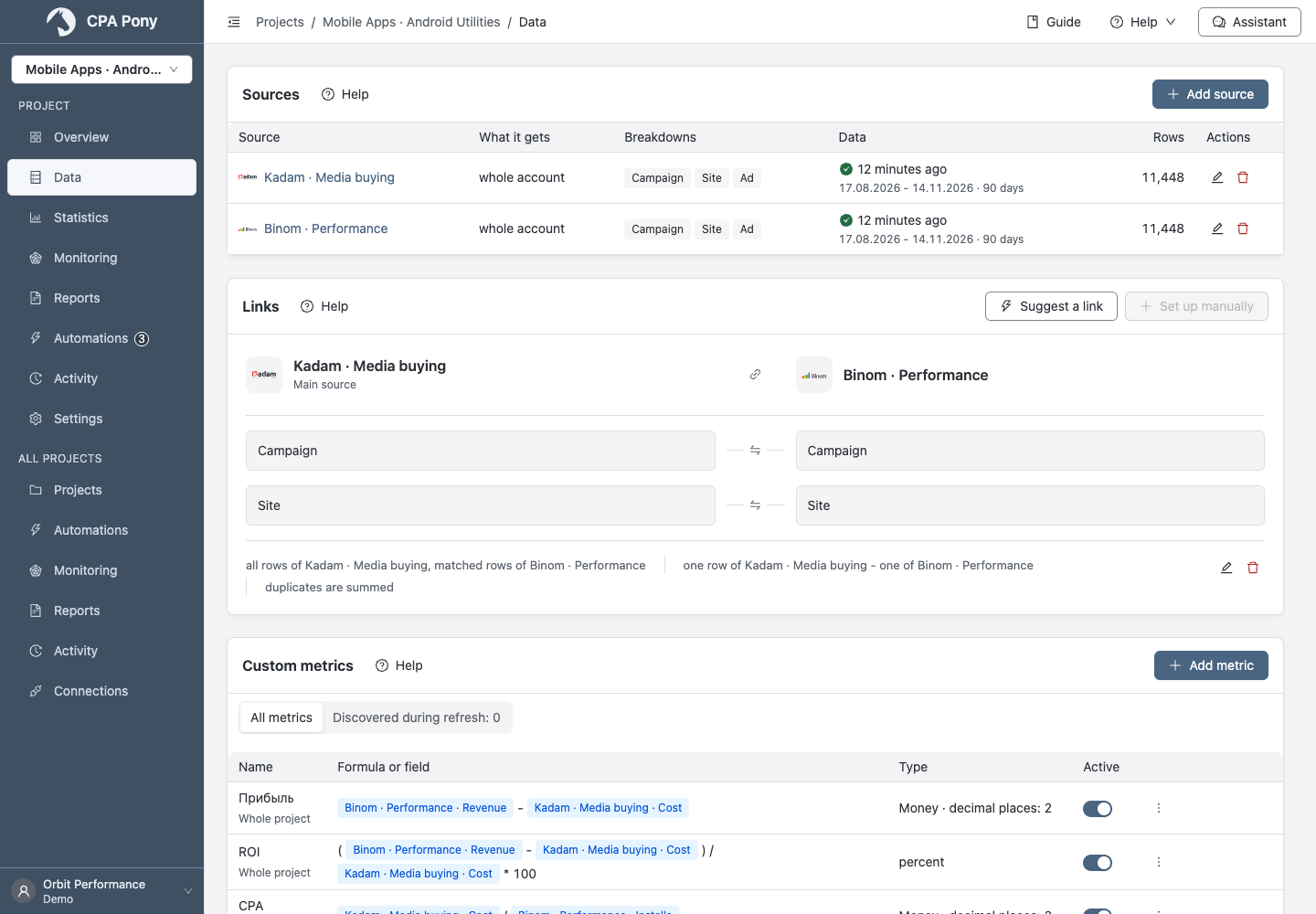
If a pair is unavailable, read the reason beside it. You may need to add the required dimension to a source or choose another available dimension. A saved link alone does not mean the data is ready.
Check a refresh
Open a source's latest refresh details and check the result, available period and any error. To refresh specific dates manually, follow the project instructions.
If the time zone or source selection changed during a refresh, check the settings and start a new refresh. After a temporary failure, wait for the result: processing can take several minutes.
CRM data
To filter by channel, stage or UTM, use By split and the relevant service field. If it is missing, add it to the connection, select it in the source and refresh the data.
Do not approve discovered fields containing contacts or other third-party personal data. Read the data transfer notice beside the form.
Earlier data is retained when a refresh fails. If the error keeps recurring, send it to support. If too many calendar variants are reported, reduce the number of different time zones used by projects sharing this connection.
Edit or delete
Open the actions in a source row or beside a link. Read the warnings before saving or deleting: the change may affect automations, observations and reports, including those in other projects.
If a dependency blocks deletion, open the listed object and change its settings. For a metric needed by another project, you can first enable it in that project's source. Objects you cannot access are shown without names; ask an administrator for help.
After a save error, correct the reported cause and try again. See handling errors.