

Connections
A connection gives CPA Pony access to an account in an advertising network, tracker or another service. One connection can be used in several team projects.
Add a service
- Open Connections → Add connection.
- Find the service in the catalogue by name or category. Details opens the integration description.
- Select the service, name the connection and fill in the required access fields.
- Select Connect. If the service asks you to sign in on its own page, complete that sign-in in the same browser.
- Check the result. If it fails, correct the marked fields or credentials and try again.
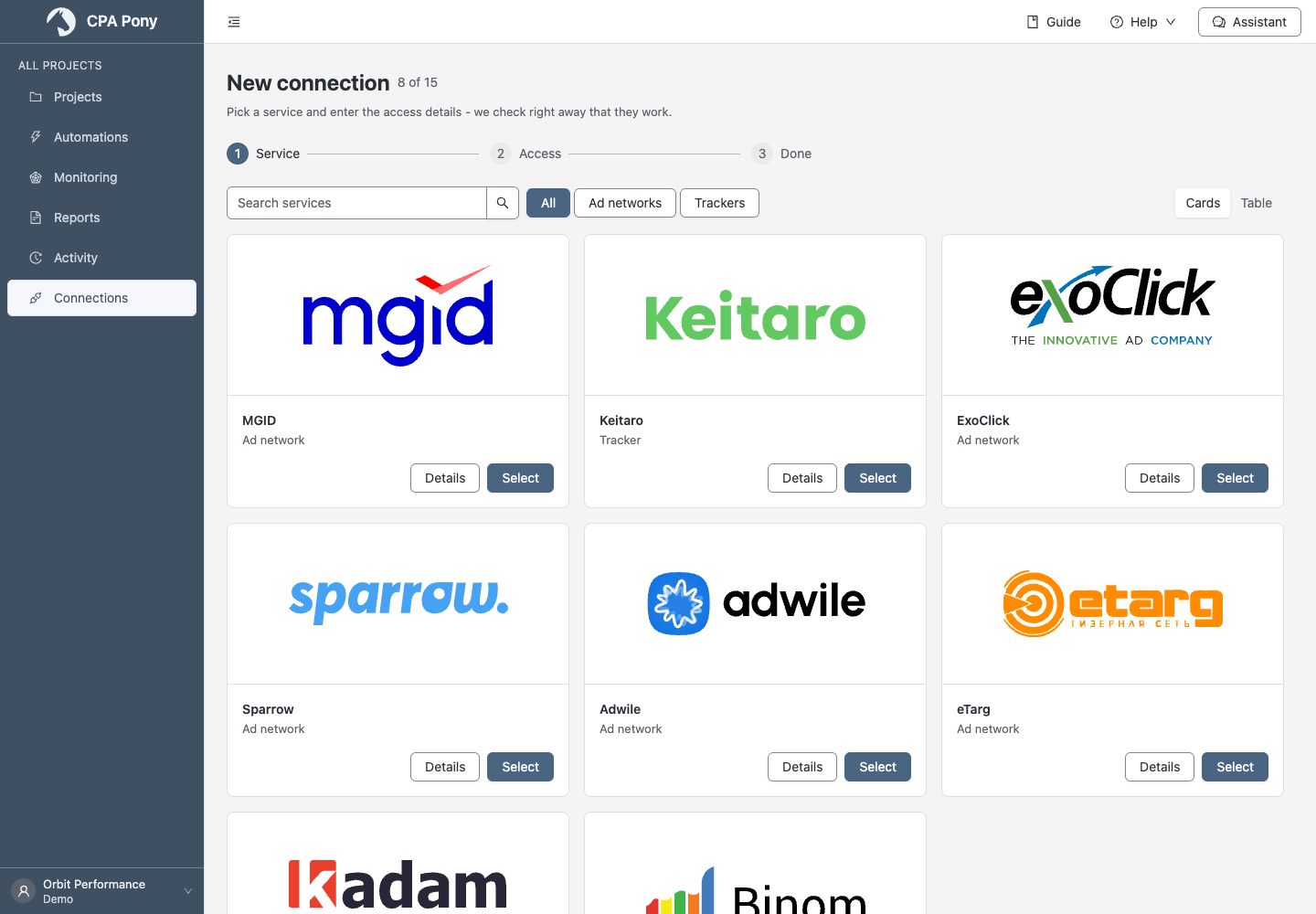
Team owners and administrators can add connections. If the action is unavailable, check your permissions and plan limit.
Do not share the authorization link or open it in another browser. If it expires or authorization cannot be confirmed, restart authorization from the connection card.
Check the status
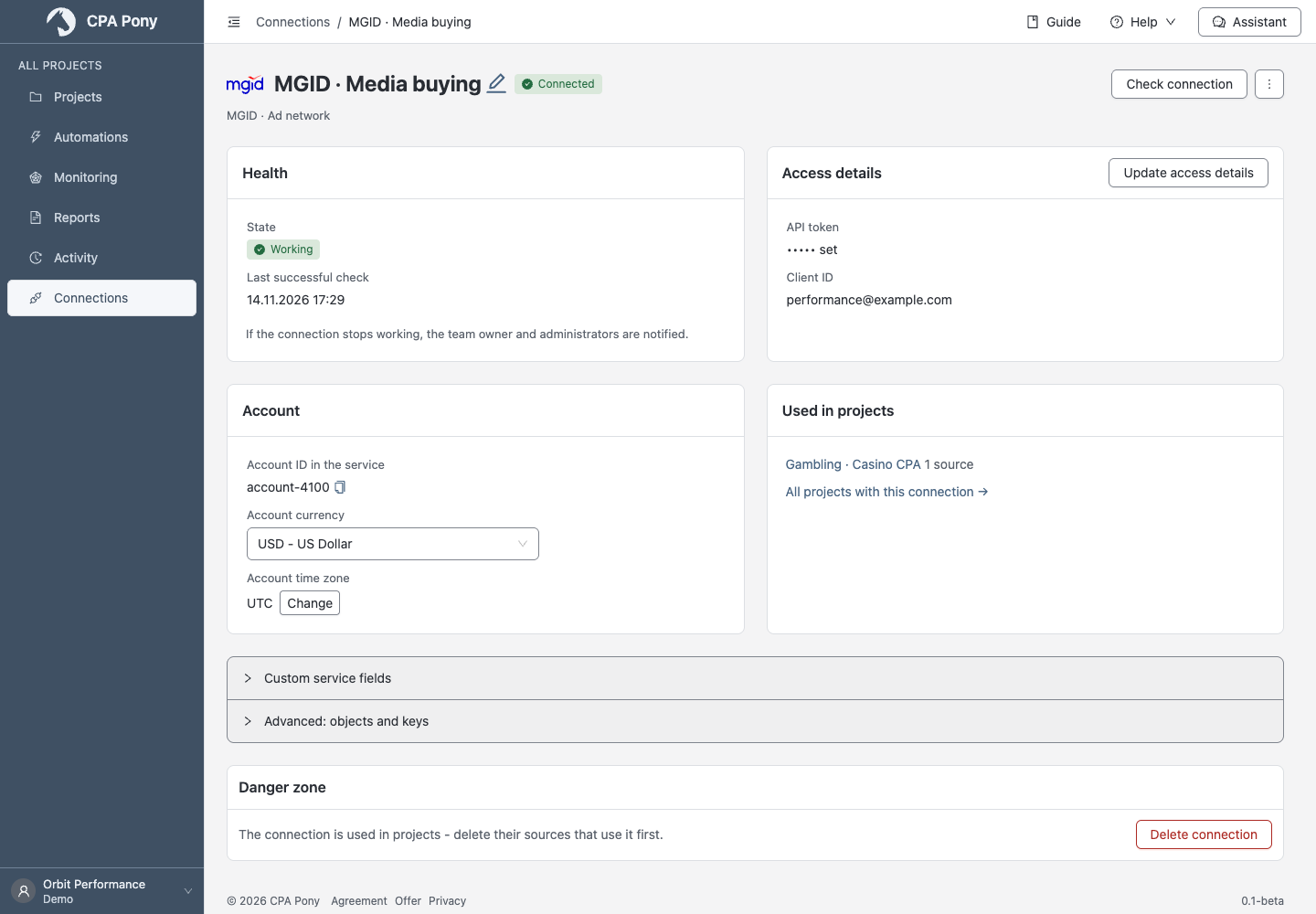
Open a connection by name. Its card shows the current status, account settings, last successful check and projects that use it.
| What you see | What to do |
|---|---|
| Connected | Use the connection in a project. Select Check connection to check access again. |
| Failing | Read the current error, fix its cause and use the suggested check. |
| Authorization is required again | Complete authorization again in this browser. |
| The service is temporarily unavailable or limits requests | Retry later, after the indicated waiting time. |
A connection with a problem may offer Check and enable. A record of an earlier error does not by itself mean the connection is currently failing.
Change credentials
Select Update access details, update the required fields and save. To check existing credentials without changing them, use Check connection.
If credentials were changed in another window, review the current card and save again.
Use a separate connection for another account
When replacing a key, make sure it belongs to the same service account. The connection retains the previous account's history. Create a new connection for a different account.
Use in a project
Create a project or open Data → Add source in an existing project. Choose the connection and the data you need. Creating a connection alone does not define a project's data selection.
Custom service fields
Custom fields let you group data and link sources using fields that are not available as standard dimensions.
- In the card, expand Custom service fields → Edit custom fields.
- Select Load service fields, then choose a field from Add field from service.
- Check the name, source field and unique Object code. Set a parent field if needed.
- If Report or export is offered, choose the appropriate option.
- Review the entire set and select Save.
If the service cannot provide a list, add fields manually. Retry loading after a temporary failure; if requests are limited, wait until the indicated time.
For CRM data, choose identifiers and numbers. Do not approve fields containing contacts or other third-party personal data. Read the data transfer notice beside the form.
After changing CRM fields, refresh the relevant project's data. A new field becomes available after that refresh. Older deals outside the service's available export history may disappear from statistics when the data is refreshed.
For a numeric metric, use a custom metric.
Service-specific settings
Binom
Enter your Binom address and API key. Choose the report's main currency yourself; the time zone is determined when the connection is checked. DIRECT in the data means a path without a landing page.
If a field's hint mentions Report, enable the corresponding column in Binom before refreshing data.
Keitaro
Select the tracker's currency. You can choose a time zone under Advanced. If left unset, the service's time zone is used, falling back to the team's time zone or UTC when it is unknown.
Choose standard metrics in source metrics. For custom conversions, use Service field in Custom metrics.
Service address
Use a public service address. If the address is blocked, check it and the standard HTTP/HTTPS port (80/443), or contact support. Checking the same blocked address again will not resolve the issue.
When a request fails
If the catalogue or card did not load, select Retry. A catalogue loading error does not mean the service was removed. If access is denied or the connection cannot be found, return to the list and ask an administrator to check your permissions.
After a save error, correct the reported cause; entered values are preserved. For a proxy-related issue, contact support rather than replacing the service key. See request failures.
Delete a connection
Open the card's Danger zone. If the connection is in use, resolve the dependencies listed in the confirmation. Deletion may affect stored data; read the consequences before confirming.
Use Update access details to replace a key instead of deleting the connection. If deletion reports an error, check the list: the error itself does not confirm that deletion completed.